
GetNotes Tools
iOfficeAI/OfficeCLI
Tool นี้คืออะไร
OfficeCLI เป็นชุดเครื่องมือโอเพนซอร์สที่ช่วยให้ AI agent ควบคุม Word, Excel และ PowerPoint ได้อย่างสมบูรณ์ด้วยโค้ดเพียงบรรทัดเดียว โดยไม่ต้องติดตั้ง Office และสามารถเรนเดอร์เอกสารเป็น HTML/PNG เพื่อให้ AI ตรวจสอบและแก้ไขได้
ข้อมูลโปรเจกต์
ดาว
16.9K
Forks
1.1K
License
Apache-2.0
อัปเดต GitHub ล่าสุด
14 ก.ค. 2569
เพิ่มใน GetNotes
15 ก.ค. 2569
Repository
iOfficeAI/OfficeCLI
แปลและเรียบเรียงโดย AI
เนื้อหาฉบับภาษาไทย
ใช้อ่านเพื่อทำความเข้าใจเบื้องต้น โปรดตรวจสอบรายละเอียดสำคัญกับเอกสารต้นฉบับด้านล่าง
OfficeCLI
OfficeCLI คือชุด Office แรกและดีที่สุดในโลกที่ออกแบบมาสำหรับ AI agent
มอบการควบคุม Word, Excel และ PowerPoint ให้กับ AI agent ได้อย่างสมบูรณ์ — ด้วยโค้ดเพียงบรรทัดเดียว
โอเพนซอร์ส. ไบนารีเดียว. ไม่ต้องติดตั้ง Office. ไม่มีข้อพึ่งพา. ใช้งานได้ทุกที่.
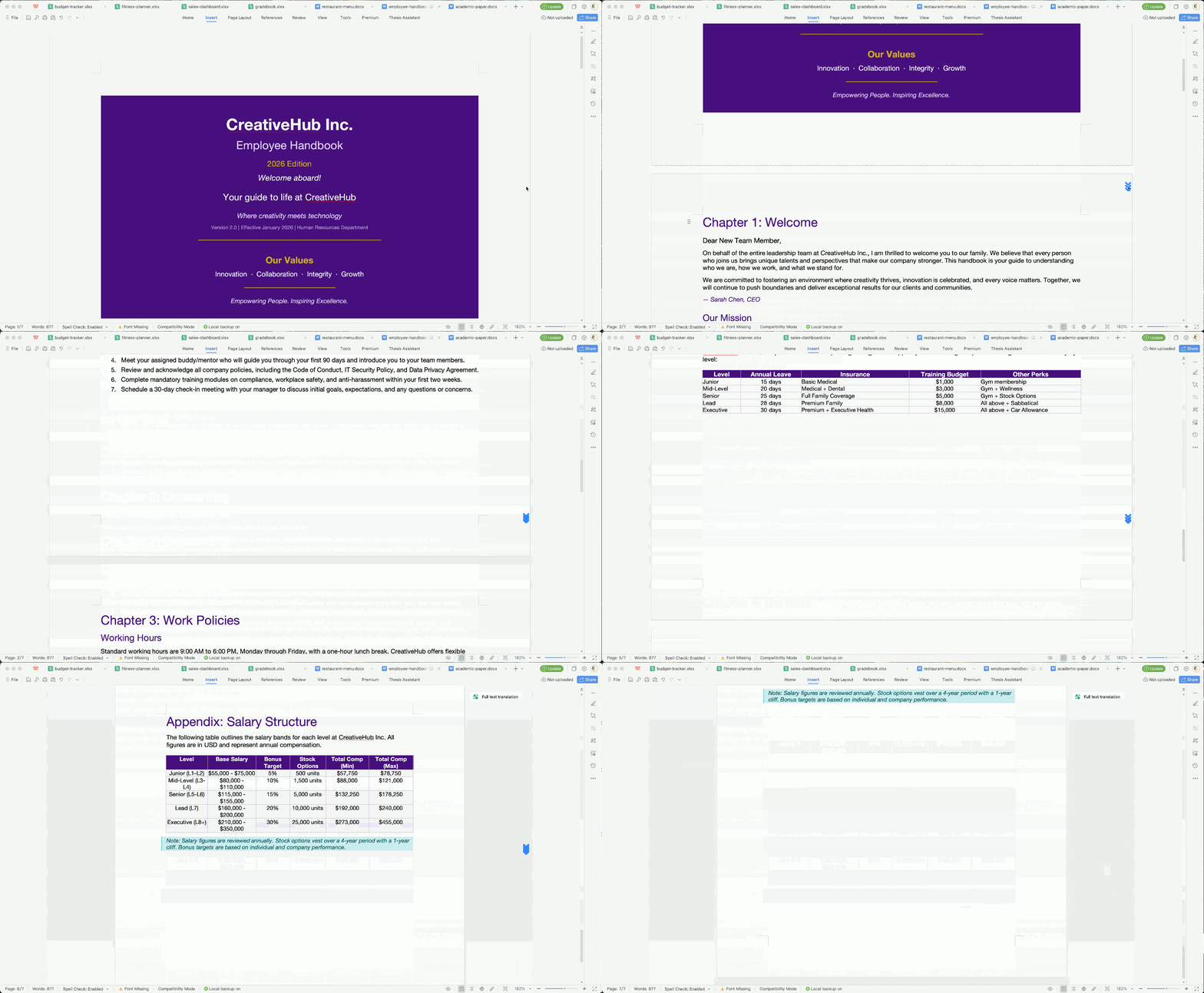
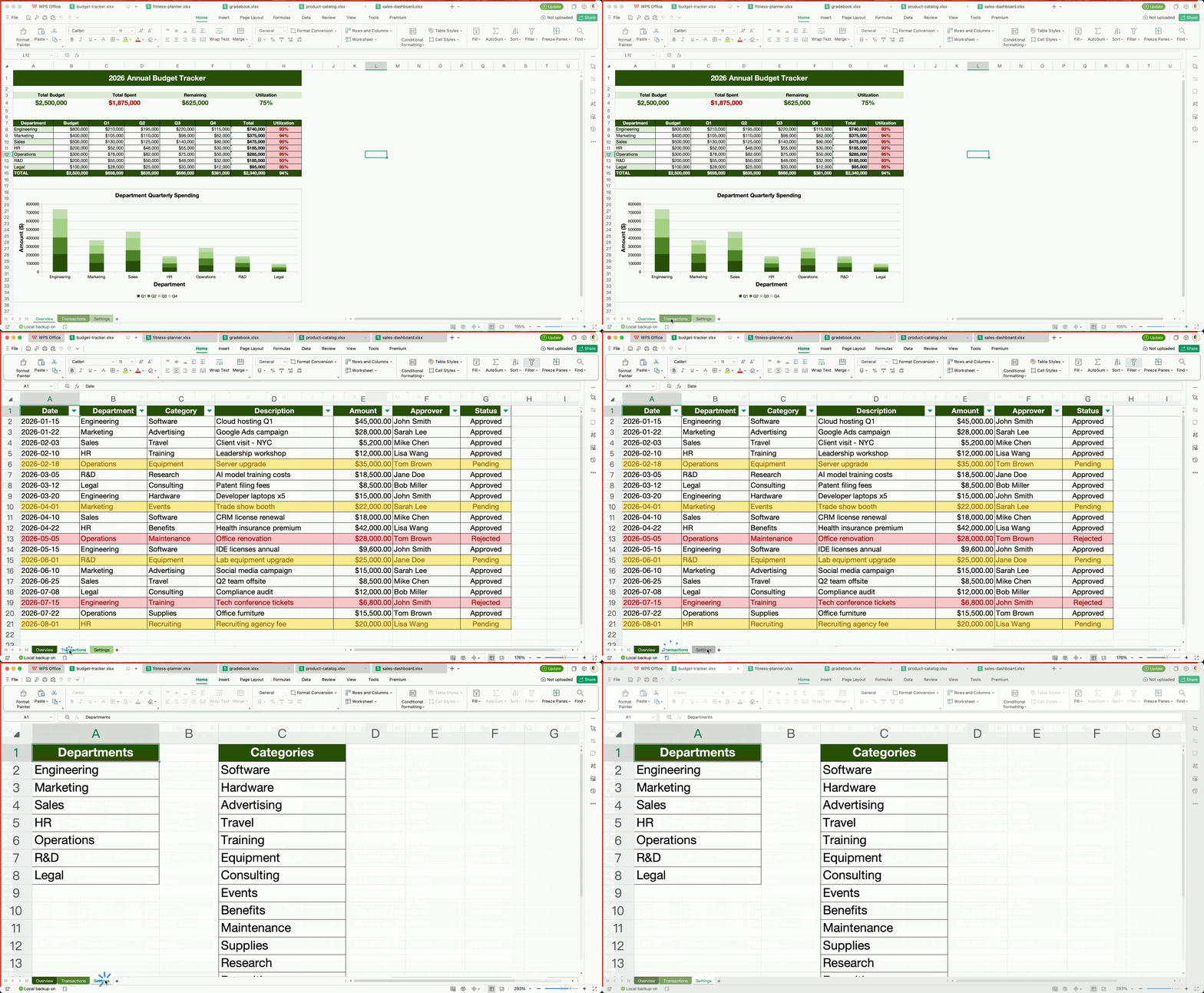
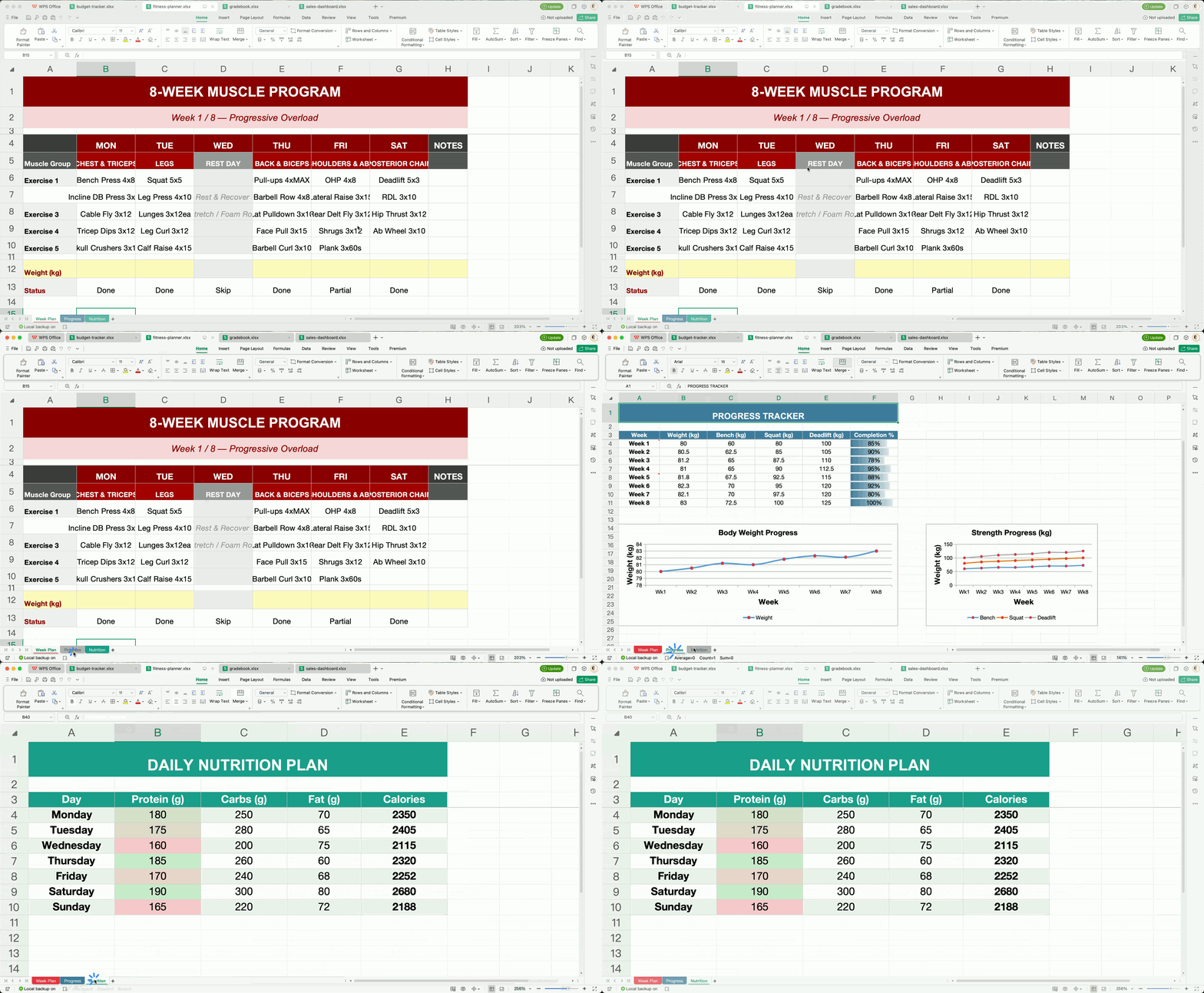
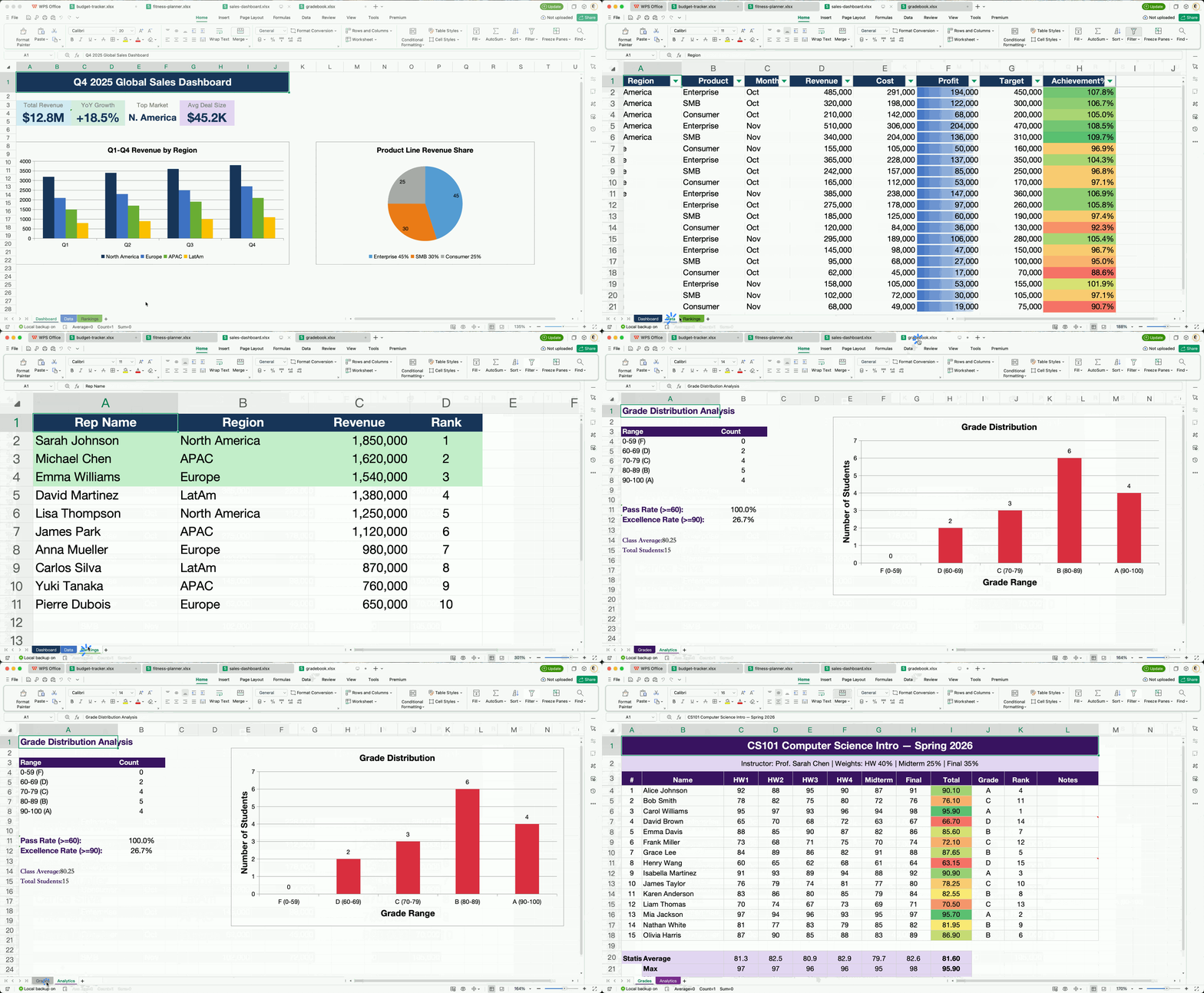
เอนจินเรนเดอร์ HTML ในตัวของ OfficeCLI สร้างเอกสารขึ้นมาใหม่ด้วยความแม่นยำสูง — และนั่นคือสิ่งที่ทำให้ AI "มองเห็น" ได้ มันเรนเดอร์ไฟล์ .docx / .xlsx / .pptx เป็น HTML หรือ PNG ซึ่งช่วยปิดวงจร เรนเดอร์ → ตรวจสอบ → แก้ไข ได้อย่างสมบูรณ์.


สำหรับ AI Agent — เริ่มต้นได้ในบรรทัดเดียว
วางสิ่งนี้ลงในแชทของ AI agent ของคุณ — มันจะอ่านไฟล์ skill และติดตั้งทุกอย่างโดยอัตโนมัติ:
curl -fsSL https://officecli.ai/SKILL.mdแค่นั้นเอง. ไฟล์ skill จะสอน agent ถึงวิธีการติดตั้งไบนารีและใช้งานคำสั่งทั้งหมด.
สำหรับมนุษย์
ตัวเลือก A — GUI: ติดตั้ง AionUi — แอปพลิเคชันเดสก์ท็อปที่ให้คุณสร้างและแก้ไขเอกสาร Office ผ่านภาษาธรรมชาติ โดยมี OfficeCLI เป็นกลไกเบื้องหลัง เพียงแค่คุณอธิบายสิ่งที่คุณต้องการ และ AionUi จะจัดการส่วนที่เหลือให้.
ตัวเลือก B — CLI: ดาวน์โหลดไบนารีสำหรับแพลตฟอร์มของคุณจาก GitHub Releases จากนั้นรัน:
officecli installสิ่งนี้จะคัดลอกไบนารีไปยัง PATH ของคุณ และติดตั้ง officecli skill ลงใน AI coding agent ทุกตัวที่ตรวจพบ — Claude Code, Cursor, Windsurf, GitHub Copilot และอื่น ๆ. Agent ของคุณสามารถสร้าง อ่าน และแก้ไขเอกสาร Office ในนามของคุณได้ทันที โดยไม่จำเป็นต้องตั้งค่าเพิ่มเติม.
สำหรับนักพัฒนา — ดูการทำงานจริงใน 30 วินาที
# 1. Install (macOS / Linux) — or: brew install officecli / npm install -g @officecli/officecli
curl -fsSL https://raw.githubusercontent.com/iOfficeAI/OfficeCLI/main/install.sh | bash
# Windows (PowerShell): irm https://raw.githubusercontent.com/iOfficeAI/OfficeCLI/main/install.ps1 | iex

# 2. Create a blank PowerPoint
officecli create deck.pptx

# 3. Start live preview — opens http://localhost:26315 in your browser
officecli watch deck.pptx

# 4. Open another terminal, add a slide — watch the browser update instantly
officecli add deck.pptx / --type slide --prop title="Hello, World!"
แค่นั้นเอง. ทุกคำสั่ง add, set หรือ remove ที่คุณรันจะรีเฟรชการพรีวิวแบบเรียลไทม์. ลองทดลองต่อไป — เบราว์เซอร์คือวงจรการตอบกลับแบบสดของคุณ.
เริ่มต้นอย่างรวดเร็ว
# Create a presentation and add content
officecli create deck.pptx
officecli add deck.pptx / --type slide --prop title="Q4 Report" --prop background=1A1A2E
officecli add deck.pptx '/slide[1]' --type shape \
  --prop text="Revenue grew 25%" --prop x=2cm --prop y=5cm \
  --prop font=Arial --prop size=24 --prop color=FFFFFF

# View as outline
officecli view deck.pptx outline
# → Slide 1: Q4 Report
# →   Shape 1 [TextBox]: Revenue grew 25%

# View as HTML — opens a rendered preview in your browser, no server needed
officecli view deck.pptx html

# Get structured JSON for any element
officecli get deck.pptx '/slide[1]/shape[1]' --json

# Save and close — flushes the resident session to disk
officecli close deck.pptx{
"tag": "shape",
"path": "/slide[1]/shape[1]",
"attributes": {
"name": "TextBox 1",
"text": "Revenue grew 25%",
"x": "720000",
"y": "1800000"
}
}ทำไมต้อง OfficeCLI?
สิ่งที่เคยต้องใช้โค้ด Python 50 บรรทัดและ 3 ไลบรารีแยกกัน:
from pptx import Presentation
from pptx.util import Inches, Pt
prs = Presentation()
slide = prs.slides.add_slide(prs.slide_layouts[0])
title = slide.shapes.title
title.text = "Q4 Report"
# ... 45 more lines ...
prs.save('deck.pptx')
ตอนนี้ใช้เพียงคำสั่งเดียว:
officecli add deck.pptx / --type slide --prop title="Q4 Report"OfficeCLI ทำอะไรได้บ้าง:
- สร้าง เอกสารตั้งแต่เริ่มต้น -- เปล่าหรือมีเนื้อหา
- อ่าน ข้อความ, โครงสร้าง, สไตล์, สูตร -- ในรูปแบบข้อความธรรมดาหรือ JSON ที่มีโครงสร้าง
- วิเคราะห์ ปัญหาการจัดรูปแบบ, ความไม่สอดคล้องกันของสไตล์ และปัญหาโครงสร้าง
- แก้ไข องค์ประกอบใดๆ -- ข้อความ, ฟอนต์, สี, เค้าโครง, สูตร, แผนภูมิ, รูปภาพ
- จัดระเบียบ เนื้อหาใหม่ -- เพิ่ม, ลบ, ย้าย, คัดลอกองค์ประกอบข้ามเอกสาร
| รูปแบบ | อ่าน | แก้ไข | สร้าง |
|---|---|---|---|
| Word (.docx) | ✅ | ✅ | ✅ |
| Excel (.xlsx) | ✅ | ✅ | ✅ |
| PowerPoint (.pptx) | ✅ | ✅ | ✅ |
Word — รองรับ i18n & RTL อย่างเต็มรูปแบบ (ช่องฟอนต์ต่อสคริปต์, แท็กภาษา BCP-47 ต่อสคริปต์ lang.latin/ea/cs, ตัวหนา/ตัวเอียง/ขนาดสำหรับสคริปต์ที่ซับซ้อน, direction=rtl ที่ส่งผลต่อย่อหน้า/รัน/ส่วน/ตาราง/สไตล์/ส่วนหัว/ส่วนท้าย/docDefaults, rtlGutter + pgBorders แบบย่อ, การกำหนดหมายเลขหน้าตามภาษาท้องถิ่นสำหรับภาษาฮินดี/อาหรับ/ไทย/CJK; create --locale ar-SA เปิดใช้งาน RTL โดยอัตโนมัติ), ย่อหน้า (framePr, tabs แบบย่อ, การเยื้องตามอักขระ), รัน (underline.color, ตำแหน่ง half-pts), ตาราง (การดำเนินการคอลัมน์เสมือน add/remove/move/copyfrom, hMerge), สไตล์, กล่องข้อความ / รูปร่าง (กล่องข้อความ: การหมุน, textDirection eaVert/vert270, การไล่ระดับสี, เงา, ความทึบ), ส่วนหัว/ส่วนท้าย, รูปภาพ (PNG/JPG/GIF/SVG), สมการ (อินพุต LaTeX), ไดอะแกรม (mermaid → รูปร่างที่แก้ไขได้แบบเนทีฟ, หรือ mermaid ประเภทใดก็ได้เป็น PNG ที่มีความแม่นยำสูง), ความคิดเห็น, เชิงอรรถ, ลายน้ำ, บุ๊กมาร์ก, สารบัญ, แผนภูมิ, ไฮเปอร์ลิงก์, ส่วน, ฟอร์มฟิลด์, ตัวควบคุมเนื้อหา (SDT), ฟิลด์ (22 ประเภทที่ไม่มีพารามิเตอร์ + MERGEFIELD / REF / PAGEREF / SEQ / STYLEREF / DOCPROPERTY / IF), วัตถุ OLE, การแก้ไข / การติดตามการเปลี่ยนแปลง (revision.type=ins\|del\|format\|moveFrom\|moveTo + revision.action=accept\|reject, ตัวเลือกต่อเป้าหมาย /revision[@author=Alice], การค้นหาและแทนที่ที่ติดตาม), สีพื้นหลังหน้า, คุณสมบัติเอกสาร
Excel — เซลล์ (คู่มือการออกเสียง / ฟุริกานะเมื่อเพิ่ม, Excel-UI --shift left\|up เมื่อลบ / shift=right\|down เมื่อเพิ่ม), สูตร (ฟังก์ชันในตัวกว่า 350 รายการพร้อมการประเมินอัตโนมัติ, อาร์เรย์ไดนามิกที่กระจายตัวพร้อมการเติม _xlfn. อัตโนมัติ, กลุ่มฟังก์ชันทางการเงิน / พันธบัตรและสถิติ, OFFSET/INDIRECT, เนื้อหาสูตรชื่อที่กำหนดจะถูกแทรกเมื่อแยกวิเคราะห์, การเขียนซ้ำการอ้างอิงสูตรเมื่อแทรกแถว/คอลัมน์), ชีต (มองเห็นได้/ซ่อน/ซ่อนมาก, ระยะขอบการพิมพ์, printTitleRows/Cols, RTL sheetView, การเปลี่ยนชื่อชีตที่คำนึงถึงการเรียงซ้อน, ตัวกรองเซลล์ว่างที่ทำให้ไฟล์ใหญ่ขึ้นเมื่อเปิด), ตัวเลือกบูลีน and/or (row[Salary>5000 and Region=EMEA]), ตาราง, การเรียงลำดับ (ชีต / ช่วง, หลายคีย์, รองรับ sidecar), การจัดรูปแบบตามเงื่อนไข, แผนภูมิ (รวมถึง box-whisker, pareto พร้อมการเรียงลำดับอัตโนมัติ + เปอร์เซ็นต์สะสม, แกนล็อก), PivotTable (หลายฟิลด์, การจัดกลุ่มวันที่, showDataAs, การเรียงลำดับ, grandTotals, subtotals, เค้าโครงแบบ compact/outline/tabular, ทำซ้ำป้ายกำกับรายการ, แถวว่าง, ฟิลด์คำนวณ, ตัวกรอง labelFilter / topN แบบถาวร, แคช CoW + การแชร์ข้าม Pivot), Slicer, ช่วงที่มีชื่อ, การตรวจสอบความถูกต้องของข้อมูล, รูปภาพ (PNG/JPG/GIF/SVG พร้อมการแสดงผลแบบคู่), Sparkline, ข้อคิดเห็น (RTL), Autofilter, รูปร่าง, วัตถุ OLE, การนำเข้า CSV/TSV, การอ้างอิงเซลล์ $Sheet:A1
PowerPoint — สไลด์ (สลับส่วนหัว/ส่วนท้าย/วันที่/หมายเลขสไลด์, ซ่อน), รูปร่าง (การเติมลวดลาย, เอฟเฟกต์เบลอ, คำแนะนำการเชื่อมโยงหลายมิติ + ลิงก์ข้ามสไลด์, สีไฮไลต์ บนข้อความ, slideMaster/slideLayout เพิ่ม/ตั้งค่า/ลบตามประเภท, นามแฝงลูกศร, effective.X + effective.X.src), รูปภาพ (PNG/JPG/GIF/SVG, โหมดการเติม: stretch/contain/cover/tile, ความสว่าง/คอนทราสต์/เรืองแสง/เงา, การหมุน, ลิงก์ + คำแนะนำ), ตาราง (แค็ตตาล็อกสไตล์ PowerPoint ในตัว, การรับ /col[C] เสมือน + สลับ/คัดลอกจาก, ย้าย/คัดลอกแถว/คอลัมน์จาก, นามแฝงการเติม/พื้นหลัง), แผนภูมิ (pieOfPie, barOfPie, ตัวตั้งค่า axisLine/gridline ต่อแอตทริบิวต์, เพิ่ม/ลบชุดข้อมูลด้วยชุดสีธีม, anchor=x,y,w,h แบบย่อ), ภาพเคลื่อนไหว (15 รูปแบบเน้น + 16 รูปแบบออกที่รองรับเทมเพลต, โซ่หลายเอฟเฟกต์, รูปแบบเส้นทางการเคลื่อนไหว, ทำซ้ำ/เริ่มใหม่/ย้อนกลับอัตโนมัติ, ภาพเคลื่อนไหวแผนภูมิ + chartBuild), การเปลี่ยนภาพ (morph + p14 + 12 p15 รูปแบบ PowerPoint 2013+), โมเดล 3D (.glb) (รวม rotation=ax,ay,az), การซูมสไลด์, สมการ (อินพุต LaTeX), ไดอะแกรม (mermaid flowchart / sequence → รูปร่างที่แก้ไขได้ในตัว, หรือ mermaid ประเภทใดก็ได้เป็น PNG ที่มีความละเอียดสูง), ธีม, ตัวเชื่อมต่อ (from/to รับพาธ /slide[N]/shape[@name=Foo] เต็ม), วิดีโอ/เสียง (วนซ้ำ, autoStart), กลุ่ม (ลิงก์ + คำแนะนำ; Get/Query/Add/Remove ทั้งหมดจะลงลึกเข้าไปในกลุ่ม), บันทึกย่อ (RTL, lang), ข้อคิดเห็น (RTL, การเดินทางไปกลับแบบเธรด p188 แบบดั้งเดิม + สมัยใหม่), SmartArt (เดินทางไปกลับผ่าน add-part + raw-set), วัตถุ OLE, ตัวยึด (เพิ่ม/ตั้งค่าตาม phType)
กรณีการใช้งาน
สำหรับนักพัฒนา:
- ทำให้การสร้างรายงานจากฐานข้อมูลหรือ API เป็นไปโดยอัตโนมัติ
- ประมวลผลเอกสารเป็นชุด (ค้นหา/แทนที่จำนวนมาก, อัปเดตสไตล์)
- สร้างไปป์ไลน์เอกสารในสภาพแวดล้อม CI/CD (สร้างเอกสารจากผลการทดสอบ)
- ระบบอัตโนมัติของ Office แบบ Headless ในสภาพแวดล้อม Docker/คอนเทนเนอร์
สำหรับ AI Agents:
- สร้างงานนำเสนอจากข้อความแจ้งของผู้ใช้ (ดูตัวอย่างด้านบน)
- แยกข้อมูลที่มีโครงสร้างจากเอกสารเป็น JSON
- ตรวจสอบและตรวจสอบคุณภาพเอกสารก่อนส่งมอบ
สำหรับทีม:
- โคลนเทมเพลตเอกสารและเติมข้อมูล
- การตรวจสอบความถูกต้องของเอกสารอัตโนมัติในไปป์ไลน์ CI/CD
การติดตั้ง
มาในรูปแบบไบนารีเดียวที่รวมทุกอย่างไว้ในตัว รันไทม์ .NET ถูกฝังมาด้วย — ไม่ต้องติดตั้งอะไร ไม่ต้องจัดการรันไทม์
ติดตั้งในบรรทัดเดียว:
# macOS / Linux
curl -fsSL https://raw.githubusercontent.com/iOfficeAI/OfficeCLI/main/install.sh | bash

# Windows (PowerShell)
irm https://raw.githubusercontent.com/iOfficeAI/OfficeCLI/main/install.ps1 | iex
หรือผ่านตัวจัดการแพ็กเกจ:
# Homebrew (macOS / Linux)
brew install officecli

# Scoop (Windows)
scoop install officecli

# npm (ทุกแพลตฟอร์ม — ดึงไบนารีเนทีฟสำหรับแพลตฟอร์มของคุณ)
npm install -g @officecli/officecli
หรือดาวน์โหลดด้วยตนเอง จาก GitHub Releases:
| แพลตฟอร์ม | ไบนารี |
|---|---|
| macOS Apple Silicon | officecli-mac-arm64 |
| macOS Intel | officecli-mac-x64 |
| Linux x64 | officecli-linux-x64 |
| Linux ARM64 | officecli-linux-arm64 |
| Windows x64 | officecli-win-x64.exe |
| Windows ARM64 | officecli-win-arm64.exe |
ตรวจสอบการติดตั้ง: officecli --version
หรือติดตั้งด้วยตนเองจากไบนารีที่ดาวน์โหลดมา (หรือรัน officecli เปล่าๆ เพื่อติดตั้งอัตโนมัติ):
officecli install    # ชัดเจน
officecli            # การเรียกใช้เปล่าๆ ก็จะเรียกการติดตั้งด้วย
การอัปเดตจะถูกตรวจสอบโดยอัตโนมัติในเบื้องหลัง ปิดใช้งานด้วย officecli config autoUpdate false หรือข้ามการเรียกใช้แต่ละครั้งด้วย OFFICECLI_SKIP_UPDATE=1 การกำหนดค่าจะอยู่ใน ~/.officecli/config.json
คุณสมบัติหลัก
เอ็นจิ้นในตัวและส่วนประกอบการสร้าง
OfficeCLI เป็นแบบรวมในตัว ความสามารถด้านล่างนี้มาพร้อมกับไบนารี — ไม่จำเป็นต้องมี Office
เอ็นจิ้นการเรนเดอร์ — ความเที่ยงตรงสูง, ในตัว
หัวใจสำคัญของ OfficeCLI: เอ็นจิ้นการเรนเดอร์ HTML ที่สร้างขึ้นใหม่ตั้งแต่ต้นด้วยความเที่ยงตรงสูง ซึ่งช่วยให้ AI agent มองเห็น เอกสารที่เรนเดอร์แล้ว แทนที่จะคาดเดาจาก DOM ครอบคลุมรูปร่าง, แผนภูมิ (เส้นแนวโน้ม, แถบข้อผิดพลาด, waterfall, candlestick, sparklines), สมการ (OMML → LaTeX, เรนเดอร์ด้วย KaTeX), โมเดล 3D .glb ผ่าน Three.js, การเปลี่ยนภาพแบบ morph, การซูมสไลด์ และเอฟเฟกต์รูปร่าง ภาพหน้าจอ PNG ต่อหน้าจะถูกสร้างขึ้นโดยการส่ง HTML ที่เรนเดอร์แล้วผ่านเบราว์เซอร์แบบ headless มีสามโหมด:
view html— ไฟล์ HTML แบบสแตนด์อโลน, ทรัพยากรถูกฝังไว้ เปิดในเบราว์เซอร์ใดก็ได้view screenshot— PNG ต่อหน้า, พร้อมสำหรับ multimodal agents เพื่ออ่านwatch— เซิร์ฟเวอร์ HTTP ในเครื่องพร้อมการแสดงตัวอย่างที่รีเฟรชอัตโนมัติ; ทุกadd/set/removeจะอัปเดตเบราว์เซอร์ทันที การดู Excel รองรับการแก้ไขเซลล์แบบอินไลน์และการลากเพื่อจัดตำแหน่งแผนภูมิใหม่
officecli view deck.pptx html -o /tmp/deck.html
officecli view deck.pptx screenshot -o /tmp/deck.png # เพิ่ม --page 1-N สำหรับสไลด์เพิ่มเติม
officecli watch deck.pptx                            # http://localhost:26315
หากไม่มีการแสดงภาพ, agent ที่สร้างสไลด์จะทำงานแบบสุ่มสี่สุ่มห้า — มันสามารถอ่าน DOM ได้ แต่ไม่สามารถบอกได้ว่าชื่อเรื่องล้นหรือรูปร่างสองอันทับซ้อนกันหรือไม่ เนื่องจากการเรนเดอร์ถูกสร้างขึ้นในไบนารี, ลูป เรนเดอร์ → ดู → แก้ไข จึงทำงานใน CI, ใน Docker, บนเซิร์ฟเวอร์ที่ไม่มีจอแสดงผล — ทุกที่ที่ไบนารีทำงาน
เอ็นจิ้นสูตรและ Pivot
ฟังก์ชัน Excel ในตัวกว่า 350 รายการจะถูกประเมินโดยอัตโนมัติเมื่อเขียน — เขียน =SUM(A1:A2), get เซลล์, ค่าก็อยู่ที่นั่นแล้ว ไม่ต้องเดินทางผ่าน Office เพื่อคำนวณใหม่ ครอบคลุมอาร์เรย์ไดนามิกที่กระจายตัว (FILTER / SORT / UNIQUE / SEQUENCE / LET / LAMBDA / MAP), VLOOKUP / XLOOKUP / INDEX / MATCH, คณิตศาสตร์ทางการเงินและพันธบัตร (XIRR / PRICE / YIELD / DURATION / COUPNUM), การแจกแจงทางสถิติ, การทดสอบและการถดถอย (NORM.DIST / T.TEST / LINEST), และฟังก์ชันวันที่และข้อความ
นอกจากนี้ PivotTable OOXML ดั้งเดิมจากช่วงต้นฉบับด้วยคำสั่งเดียว — แถว/คอลัมน์/ตัวกรองหลายฟิลด์, การรวม 10 แบบ, โหมด showDataAs, การจัดกลุ่มวันที่, ฟิลด์คำนวณ, top-N, เค้าโครง แคช Pivot + คำจำกัดความจะถูกเขียนลงใน OOXML ดังนั้น Excel จะเปิดไฟล์โดยมีการรวมข้อมูลที่เติมไว้แล้ว:
bash
officecli add sales.xlsx '/Sheet1' --type pivottable
--prop source='Data!A1:E10000' --prop rows='Region,Category'
--prop cols=Quarter --prop values='Revenue:sum,Units:avg'
--prop showDataAs=percentOfTotal
#### การผสานเทมเพลต — สร้างครั้งเดียว, กรอกหลายครั้ง

`merge` จะแทนที่ตัวยึดตำแหน่ง `{{key}}` ในไฟล์ `.docx` / `.xlsx` / `.pptx` ด้วยข้อมูล JSON — ครอบคลุมทั้งย่อหน้า, เซลล์ตาราง, รูปร่าง, ส่วนหัว, ส่วนท้าย และชื่อแผนภูมิ เอเจนต์ออกแบบเลย์เอาต์เพียงครั้งเดียว (มีค่าใช้จ่ายสูง); โค้ดที่ใช้ในการผลิตจะกรอกข้อมูล N ครั้ง (ราคาถูก, กำหนดได้, ไม่มีค่าใช้จ่ายโทเค็น) หลีกเลี่ยงข้อผิดพลาดที่เอเจนต์สร้างรายงานแต่ละฉบับใหม่ตั้งแต่ต้น และสร้างเลย์เอาต์ที่ไม่สอดคล้องกัน N ฉบับ

```bash
officecli merge invoice-template.docx out-001.docx '{"client":"Acme","total":"$5,200"}'
officecli merge q4-template.pptx q4-acme.pptx data.json
การดัมพ์แบบ Round-trip — เรียนรู้จากเอกสารที่มีอยู่
dump จะแปลงไฟล์ .docx, .pptx หรือ .xlsx — ทั้งเอกสาร หรือส่วนย่อยใดๆ (ย่อหน้าเดียว, ตาราง, สไลด์, เวิร์กชีต, ส่วนสไตล์, การกำหนดหมายเลข, ธีม หรือการตั้งค่า) — ให้เป็น JSON แบบแบตช์ที่สามารถเล่นซ้ำได้; batch จะเล่นซ้ำ เมื่อผู้ใช้ต้องการเลียนแบบตัวอย่าง เอเจนต์จะอ่านสเปกที่มีโครงสร้างแทน XML OOXML ดิบ, แก้ไข และเล่นซ้ำ เชื่อมโยงระหว่าง "ฉันมีเทมเพลตที่มีอยู่" กับ "สร้างรูปแบบให้ฉัน 100 แบบ"
officecli dump existing.docx -o blueprint.json                  # ทั้งเอกสาร
officecli dump existing.docx /body/tbl[1] -o table.json         # ส่วนย่อยใดๆ
officecli dump existing.xlsx /Sheet1 -o sheet.json              # เวิร์กชีตเดียว
officecli batch new.docx --input blueprint.json
โหมด Resident และ Batch
สำหรับเวิร์กโฟลว์ที่มีหลายขั้นตอน โหมด resident จะเก็บเอกสารไว้ในหน่วยความจำ โหมด batch จะใช้การดำเนินการหลายอย่างในการผ่านครั้งเดียว
# โหมด Resident — ความหน่วงเกือบเป็นศูนย์ผ่าน named pipes
officecli open report.docx
officecli set report.docx /body/p[1]/r[1] --prop bold=true
officecli set report.docx /body/p[2]/r[1] --prop color=FF0000
officecli close report.docx

# โหมด Batch — การดำเนินการหลายคำสั่ง (โดยค่าเริ่มต้นจะดำเนินการต่อเมื่อเกิดข้อผิดพลาด; ใช้ --stop-on-error เพื่อยกเลิก)
echo '[{"command":"set","path":"/slide[1]/shape[1]","props":{"text":"Hello"}},
      {"command":"set","path":"/slide[1]/shape[2]","props":{"fill":"FF0000"}}]' \
  | officecli batch deck.pptx --json

# Batch แบบอินไลน์ด้วย --commands (ไม่จำเป็นต้องใช้ stdin)
officecli batch deck.pptx --commands '[{"op":"set","path":"/slide[1]/shape[1]","props":{"text":"Hi"}}]'

# ยกเลิกเมื่อคำสั่งแรกที่ล้มเหลว (ค่าเริ่มต้นคือดำเนินการต่อเมื่อเกิดข้อผิดพลาด)
officecli batch deck.pptx --input updates.json --stop-on-error --json
กำลังอ่านไฟล์ด้วยเครื่องมืออื่นใช่หรือไม่? ให้ flush ลงดิสก์ก่อน
การอ่านของ officecli เอง (get/query/view) จะเห็นการแก้ไขล่าสุดของคุณเสมอ ดังนั้นภายใน officecli คุณไม่จำเป็นต้องบันทึก แต่ resident ที่ทำงานอยู่จะเลื่อนการเขียนลงดิสก์ ดังนั้น ก่อนที่โปรแกรมที่ไม่ใช่ officecli จะอ่านไฟล์ — เช่น python-docx/openpyxl, Microsoft Word, ตัวเรนเดอร์, การส่งมอบ/อัปโหลด — ให้ flush ก่อน:
officecli set report.docx /body/p[1] --prop bold=true
officecli save report.docx           # flush, เก็บ resident ให้พร้อมใช้งาน (หรือ `close` เพื่อ flush + ปล่อย)
python my_reader.py report.docx      # ตอนนี้เห็นการแก้ไขแล้ว
resident ที่ทำงานอยู่ยังจะ auto-flush หลังจากไม่ได้ใช้งานไปชั่วครู่ (ปรับได้ 2–10 วินาที, ปรับตามค่าใช้จ่ายในการบันทึกของเอกสาร) สำหรับไปป์ไลน์ที่โปรแกรมอื่นอ่านหลังจากทุกคำสั่ง ให้ตั้งค่า OFFICECLI_RESIDENT_FLUSH=each — การเปลี่ยนแปลงทุกครั้งจะถูกบันทึกลงดิสก์ก่อนที่คำสั่งจะคืนค่า ในขณะที่ resident ยังคงพร้อมใช้งาน รูปแบบการ flush เต็มรูปแบบ (each/auto/fixed/off, save / close, การปรับแต่ง env): wiki → open / close.
สถาปัตยกรรมสามชั้น
เริ่มต้นง่ายๆ และลงลึกเมื่อจำเป็นเท่านั้น
| เลเยอร์ | วัตถุประสงค์ | คำสั่ง |
|---|---|---|
| L1: Read | มุมมองเชิงความหมายของเนื้อหา | view (text, annotated, outline, stats, issues, html, svg, screenshot) |
| L2: DOM | การดำเนินการกับองค์ประกอบที่มีโครงสร้าง | get, query, set, add, remove, move, swap |
| L3: Raw XML | การเข้าถึง XPath โดยตรง — ทางเลือกสำรองสากล | raw, raw-set, add-part, validate |
# L1 — มุมมองระดับสูง
officecli view report.docx annotated
officecli view budget.xlsx text --cols A,B,C --max-lines 50

# L2 — การดำเนินการระดับองค์ประกอบ
officecli query report.docx "run:contains(TODO)"
officecli add budget.xlsx / --type sheet --prop name="Q2 Report"
officecli move report.docx /body/p[5] --to /body --index 1

# L3 — XML ดิบเมื่อ L2 ไม่เพียงพอ
officecli raw deck.pptx '/slide[1]'
officecli raw-set report.docx document \
  --xpath "//w:p[1]" --action append \
  --xml '<w:r><w:t>Injected text</w:t></w:r>'
การผสานรวม AI
MCP Server
เซิร์ฟเวอร์ MCP ในตัว — ลงทะเบียนด้วยคำสั่งเดียว:
officecli mcp claude       # Claude Code
officecli mcp cursor       # Cursor
officecli mcp vscode       # VS Code / Copilot
officecli mcp lmstudio     # LM Studio
officecli mcp list         # ตรวจสอบสถานะการลงทะเบียน
เปิดเผยการดำเนินการเอกสารทั้งหมดเป็นเครื่องมือผ่าน JSON-RPC — ไม่จำเป็นต้องเข้าถึงเชลล์
การผสานรวม CLI โดยตรง
ทำให้ OfficeCLI ทำงานร่วมกับเอเจนต์ AI ของคุณได้ในสองขั้นตอน:
- 1ติดตั้งไบนารี -- คำสั่งเดียว (ดู การติดตั้ง)
- 2เสร็จสิ้น OfficeCLI จะตรวจจับเครื่องมือ AI ของคุณโดยอัตโนมัติ (Claude Code, GitHub Copilot, Codex) โดยการตรวจสอบไดเรกทอรีการกำหนดค่าที่รู้จักและติดตั้งไฟล์ทักษะ เอเจนต์ของคุณสามารถสร้าง, อ่าน และแก้ไขเอกสาร Office ได้ทันที
หากการติดตั้งอัตโนมัติไม่ครอบคลุมการตั้งค่าของคุณ คุณสามารถติดตั้งไฟล์ทักษะด้วยตนเองได้:
ป้อน SKILL.md ให้กับเอเจนต์ของคุณโดยตรง:
curl -fsSL https://officecli.ai/SKILL.mdติดตั้งเป็นทักษะในเครื่องสำหรับ Claude Code:
curl -fsSL https://officecli.ai/SKILL.md -o ~/.claude/skills/officecli.mdเอเจนต์อื่นๆ: รวมเนื้อหาของ SKILL.md ใน system prompt หรือ tool description ของเอเจนต์ของคุณ
ทำไมเอเจนต์ของคุณจะประสบความสำเร็จกับ OfficeCLI
- เอาต์พุต JSON ที่กำหนดได้ — ทุกคำสั่งรองรับ
--jsonพร้อม schema ที่สอดคล้องกัน ไม่มีการแยกวิเคราะห์ regex, ไม่มีการ scraping stdout - การระบุตำแหน่งตามพาธ — ทุกองค์ประกอบมีพาธที่เสถียร (
/slide[1]/shape[2]) เอเจนต์สามารถนำทางเอกสารได้โดยไม่ต้องเข้าใจ XML namespaces (ไวยากรณ์ OfficeCLI: การจัดทำดัชนีแบบ 1-based, ชื่อองค์ประกอบภายใน — ไม่ใช่ XPath) - ความซับซ้อนแบบก้าวหน้า (L1 → L2 → L3) — เอเจนต์เริ่มต้นด้วยมุมมองแบบอ่านอย่างเดียว, เพิ่มระดับไปสู่การดำเนินการ DOM, และกลับไปใช้ XML ดิบเมื่อจำเป็นเท่านั้น ลดการใช้โทเค็น
- เวิร์กโฟลว์ที่แก้ไขตัวเองได้ —
validate,view issuesและรหัสข้อผิดพลาดที่มีโครงสร้าง (not_found,invalid_value,unsupported_property) จะส่งคืนคำแนะนำและช่วงค่าที่ถูกต้อง เอเจนต์สามารถแก้ไขตัวเองได้โดยไม่ต้องมีการแทรกแซงจากมนุษย์ - เอนจินการเรนเดอร์ที่เหมาะกับเอเจนต์ในตัว —
view html/view screenshot/watchจะสร้าง HTML และ PNG โดยกำเนิด ไม่จำเป็นต้องมี Office เอเจนต์สามารถ เห็น เอาต์พุตของตนเองและแก้ไขปัญหาเลย์เอาต์ได้ แม้ในสภาพแวดล้อม CI / Docker / headless - เอนจินสูตรและ Pivot ในตัว — ฟังก์ชัน Excel กว่า 350+ รายการจะถูกประเมินโดยอัตโนมัติเมื่อเขียน (รวมถึง spilling dynamic arrays, ตระกูลการเงิน/พันธบัตรและสถิติ); ตาราง Pivot OOXML ดั้งเดิมจากช่วงแหล่งที่มาด้วยคำสั่งเดียว เอเจนต์สามารถอ่านค่าที่คำนวณได้และการรวมข้อมูลที่จัดส่งได้ทันที โดยไม่ต้อง round-trip ผ่าน Office
- การผสานเทมเพลต — เอเจนต์ออกแบบเลย์เอาต์เพียงครั้งเดียว โค้ดปลายน้ำจะกรอกตัวยึดตำแหน่ง
{{key}}N ครั้ง หลีกเลี่ยงการใช้โทเค็นในการสร้างรายงานแต่ละฉบับใหม่ตั้งแต่ต้น - การดัมพ์แบบ Round-trip —
dumpจะเปลี่ยนไฟล์.docx,.pptxหรือ.xlsxให้เป็น JSON แบบแบตช์ที่สามารถเล่นซ้ำได้ เอเจนต์เรียนรู้จากตัวอย่างที่มนุษย์สร้างขึ้นโดยการอ่านสเปกที่มีโครงสร้าง ไม่ใช่ XML OOXML ดิบ - ความช่วยเหลือในตัว — เมื่อไม่แน่ใจเกี่ยวกับชื่อคุณสมบัติหรือรูปแบบค่า เอเจนต์จะรัน
officecli <format> set <element>แทนที่จะเดา - ติดตั้งอัตโนมัติ — OfficeCLI ตรวจจับเครื่องมือ AI ของคุณ (Claude Code, Cursor, VS Code, …) และกำหนดค่าตัวเอง ไม่ต้องตั้งค่าไฟล์ทักษะด้วยตนเอง
ความช่วยเหลือในตัว
อย่าเดาชื่อคุณสมบัติ — เจาะลึกเข้าไปในความช่วยเหลือ:
officecli pptx set              # องค์ประกอบและคุณสมบัติทั้งหมดที่สามารถตั้งค่าได้
officecli pptx set shape        # รายละเอียดสำหรับประเภทองค์ประกอบเดียว
officecli pptx set shape.fill   # คุณสมบัติเดียว: รูปแบบและตัวอย่าง
officecli docx query            # การอ้างอิงตัวเลือก: attributes, :contains, :has(), ฯลฯ
รัน officecli --help เพื่อดูภาพรวมทั้งหมด
JSON Output Schemas
คำสั่งทั้งหมดรองรับ --json รูปแบบการตอบกลับทั่วไป:
องค์ประกอบเดียว (get --json):
{"tag": "shape", "path": "/slide[1]/shape[1]", "attributes": {"name": "TextBox 1", "text": "Hello"}}รายการองค์ประกอบ (query --json):
[
  {"tag": "paragraph", "path": "/body/p[1]", "attributes": {"style": "Heading1", "text": "Title"}},
  {"tag": "paragraph", "path": "/body/p[5]", "attributes": {"style": "Heading1", "text": "Summary"}}
]
ข้อผิดพลาด จะส่งคืนรหัสออกที่ไม่ใช่ศูนย์พร้อมกับออบเจกต์ข้อผิดพลาดที่มีโครงสร้าง ซึ่งรวมถึงรหัสข้อผิดพลาด, คำแนะนำ และค่าที่ถูกต้องเมื่อมี:
json { "success": false, "error": { "error": "ไม่พบสไลด์ที่ 50 (ทั้งหมด: 8)", "code": "not_found", "suggestion": "ช่วงดัชนีสไลด์ที่ถูกต้อง: 1-8" } }
รหัสข้อผิดพลาด: `not_found`, `invalid_value`, `unsupported_property`, `invalid_path`, `unsupported_type`, `missing_property`, `file_not_found`, `file_locked`, `invalid_selector` ชื่อคุณสมบัติจะถูกแก้ไขอัตโนมัติ -- การสะกดคุณสมบัติผิดจะส่งคืนคำแนะนำที่ตรงกันที่สุด

**การกู้คืนข้อผิดพลาด** -- เอเจนต์จะแก้ไขตัวเองโดยการตรวจสอบองค์ประกอบที่มีอยู่:

```bash
# เอเจนต์ลองใช้พาธที่ไม่ถูกต้อง
officecli get report.docx /body/p[99] --json
# ส่งคืน: {"success": false, "error": {"error": "...", "code": "not_found", "suggestion": "..."}}

# เอเจนต์แก้ไขตัวเองโดยการตรวจสอบองค์ประกอบที่มีอยู่
officecli get report.docx /body --depth 1 --json
# ส่งคืนรายการของ children ที่มีอยู่ เอเจนต์จะเลือกพาธที่ถูกต้อง
การยืนยันการเปลี่ยนแปลง (set, add, remove, move, create พร้อม --json):
{"success": true, "path": "/slide[1]/shape[1]"}ดู officecli --help สำหรับรายละเอียดทั้งหมดเกี่ยวกับรหัสออกและรูปแบบข้อผิดพลาด
การเปรียบเทียบ
| OfficeCLI | Microsoft Office | LibreOffice | python-docx / openpyxl | |
|---|---|---|---|---|
| โอเพนซอร์สและฟรี | ✓ (Apache 2.0) | ✗ (paid license) | ✓ | ✓ |
| CLI + JSON ที่รองรับ AI | ✓ | ✗ | ✗ | ✗ |
| ไม่ต้องติดตั้ง (ไบนารีเดียว) | ✓ | ✗ | ✗ | ✗ (Python + pip) |
| เรียกใช้ได้จากทุกภาษา | ✓ (CLI) | ✗ (COM/Add-in) | ✗ (UNO API) | Python only |
| การเข้าถึงองค์ประกอบแบบพาธ | ✓ | ✗ | ✗ | ✗ |
| การสำรองข้อมูล XML ดิบ | ✓ | ✗ | ✗ | Partial |
| เอนจินเรนเดอร์ในตัวที่ใช้งานง่ายสำหรับเอเจนต์ | ✓ | ✗ | ✗ | ✗ |
| ส่งออก HTML/PNG แบบ Headless | ✓ | ✗ | Partial | ✗ |
การรวมเทมเพลต ({{key}}) ข้ามรูปแบบ | ✓ | ✗ | ✗ | ✗ |
| การดัมพ์แบบ Round-trip → JSON แบบแบตช์ | ✓ | ✗ | ✗ | ✗ |
| พรีวิวสด (รีเฟรชอัตโนมัติเมื่อแก้ไข) | ✓ | ✗ | ✗ | ✗ |
| Headless / CI | ✓ | ✗ | Partial | ✓ |
| ข้ามแพลตฟอร์ม | ✓ | Windows/Mac | ✓ | ✓ |
| Word + Excel + PowerPoint | ✓ | ✓ | ✓ | Separate libs |
การอ้างอิงคำสั่ง
| คำสั่ง | คำอธิบาย |
|---|---|
create | สร้างไฟล์ .docx, .xlsx หรือ .pptx เปล่า (ประเภทจากนามสกุล) |
view | ดูเนื้อหา (โหมด: outline, text, annotated, stats (--page-count), issues, html, svg, screenshot, pdf (ผ่านปลั๊กอิน exporter), forms (ผ่านปลั๊กอิน format-handler)) docx รองรับ --render auto|native|html |
load_skill | พิมพ์เนื้อหา SKILL.md ที่ฝังไว้สำหรับทักษะเฉพาะทาง (ไม่ต้องติดตั้ง) |
get | รับองค์ประกอบและ children (--depth N, --json) |
query | การคิวรีแบบ CSS พร้อมบูลีน and/or, แถวตามชื่อคอลัมน์ (row[Salary>5000]), แฟล็ก --find |
set | แก้ไขคุณสมบัติขององค์ประกอบ; รองรับ selectors และพาธแบบ Excel-native (เทียบเท่ากับ get/query), แฟล็ก --find/--replace |
add | เพิ่มองค์ประกอบ (หรือโคลนด้วย --from <path>) |
remove | ลบองค์ประกอบ |
move | ย้ายองค์ประกอบ (--to <parent>, --index N, --after <path>, --before <path>) |
swap | สลับองค์ประกอบสองรายการ |
validate | ตรวจสอบความถูกต้องตาม OpenXML schema |
view <file> issues | แจกแจงปัญหาของเอกสาร (ข้อความล้น, ข้อความ alt หายไป, ข้อผิดพลาดสูตร, ...) |
batch | การดำเนินการหลายอย่างในครั้งเดียว (stdin, --input, หรือ --commands; ดำเนินการต่อเมื่อเกิดข้อผิดพลาดโดยค่าเริ่มต้น, --stop-on-error เพื่อยกเลิก) |
dump | แปลงไฟล์ .docx, .pptx หรือ .xlsx ให้เป็นรูปแบบที่สามารถเล่นซ้ำได้ |
เอกสารโปรเจกต์
อ่านเอกสารต้นฉบับ
README วิธีติดตั้ง วิธีใช้งาน และข้อกำหนดจาก repository ต้นฉบับ
OfficeCLI
OfficeCLI is the world's first and the best Office suite designed for AI agents.
Give any AI agent full control over Word, Excel, and PowerPoint — in one line of code.
Open-source. Single binary. No Office installation. No dependencies. Works everywhere.

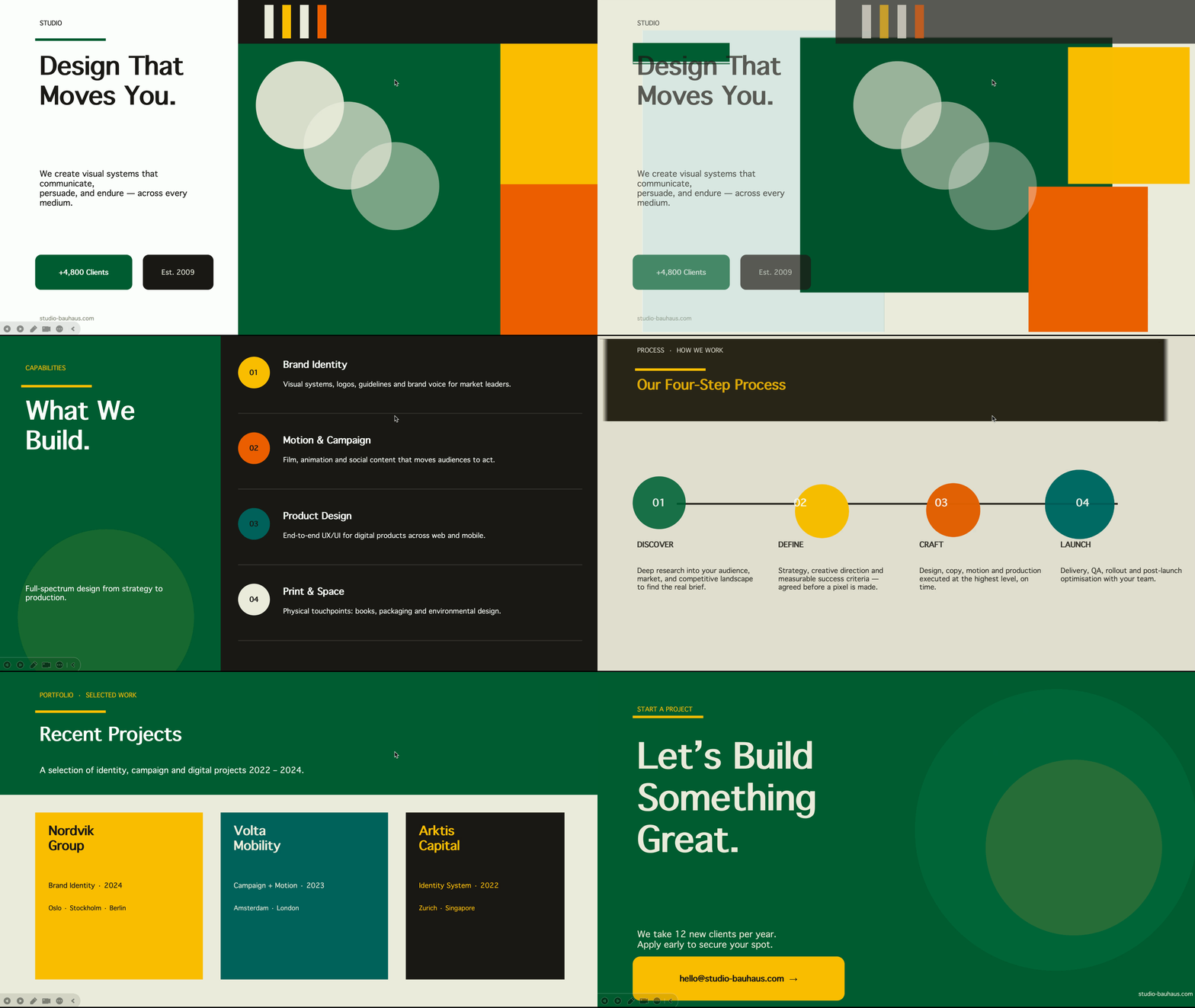
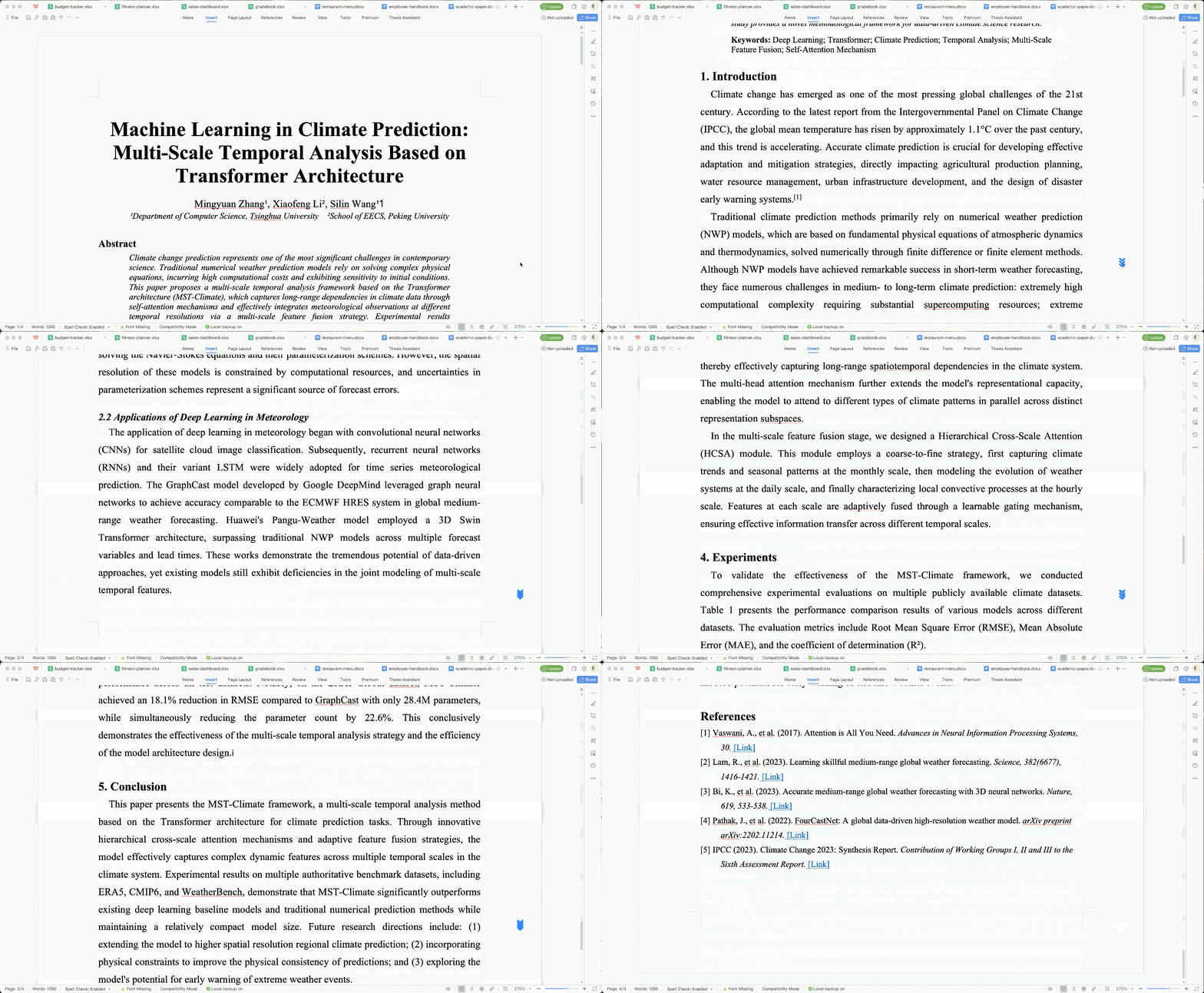
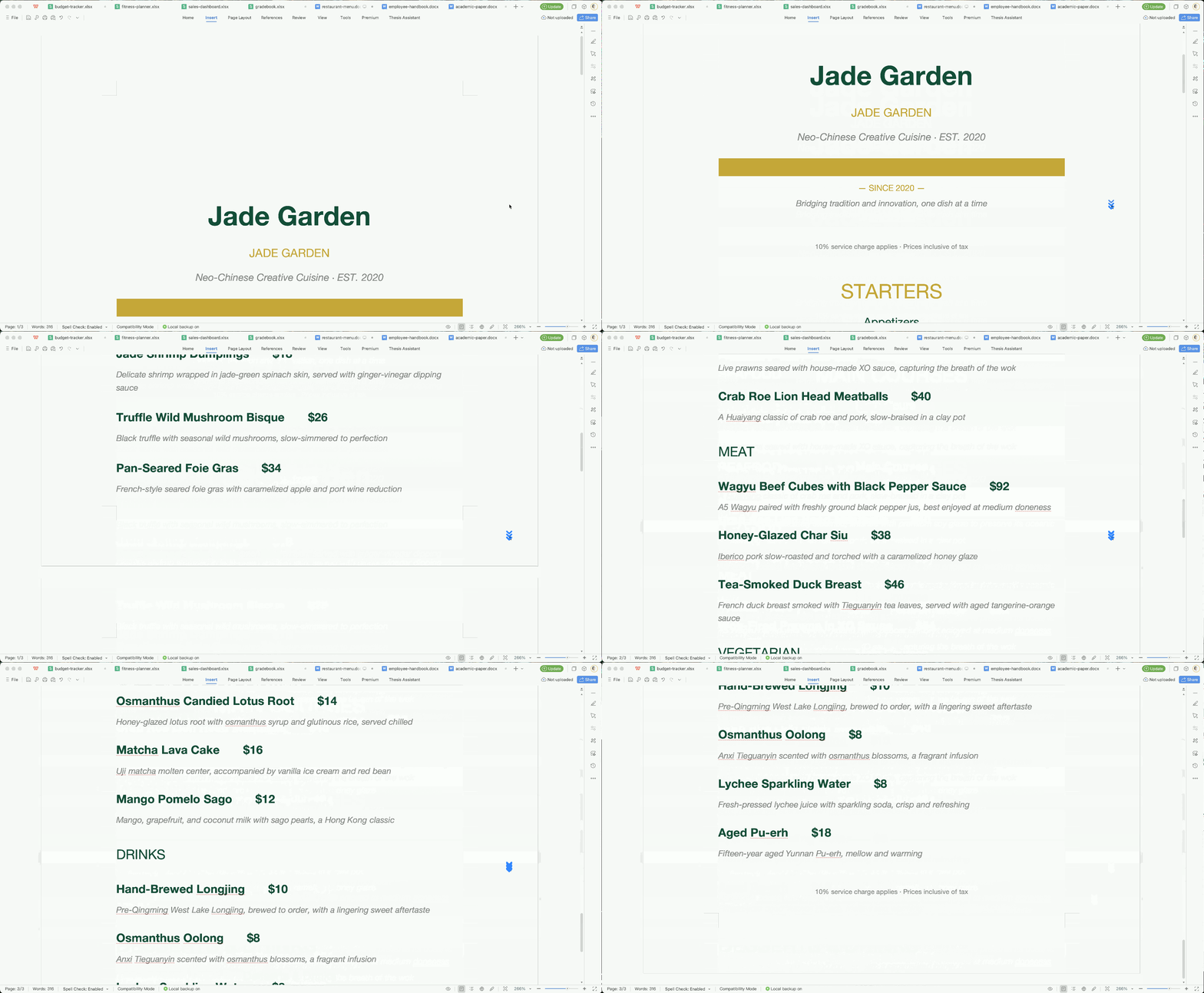
OfficeCLI's built-in HTML rendering engine reproduces documents with high fidelity — and that's what gives AI eyes. It renders .docx / .xlsx / .pptx to HTML or PNG, closing the render → look → fix loop.





For AI Agents — Get Started in One Line
Paste this into your AI agent's chat — it will read the skill file and install everything automatically:
curl -fsSL https://officecli.ai/SKILL.mdThat's it. The skill file teaches the agent how to install the binary and use all commands.
For Humans
Option A — GUI: Install AionUi — a desktop app that lets you create and edit Office documents through natural language, powered by OfficeCLI under the hood. Just describe what you want, and AionUi handles the rest.
Option B — CLI: Download the binary for your platform from GitHub Releases, then run:
officecli installThis copies the binary to your PATH and installs the officecli skill into every AI coding agent it detects — Claude Code, Cursor, Windsurf, GitHub Copilot, and more. Your agent can immediately create, read, and edit Office documents on your behalf, no extra configuration needed.
For Developers — See It Live in 30 Seconds
# 1. Install (macOS / Linux) — or: brew install officecli / npm install -g @officecli/officecli
curl -fsSL https://raw.githubusercontent.com/iOfficeAI/OfficeCLI/main/install.sh | bash
# Windows (PowerShell): irm https://raw.githubusercontent.com/iOfficeAI/OfficeCLI/main/install.ps1 | iex

# 2. Create a blank PowerPoint
officecli create deck.pptx

# 3. Start live preview — opens http://localhost:26315 in your browser
officecli watch deck.pptx

# 4. Open another terminal, add a slide — watch the browser update instantly
officecli add deck.pptx / --type slide --prop title="Hello, World!"
That's it. Every add, set, or remove command you run will refresh the preview in real time. Keep experimenting — the browser is your live feedback loop.
Quick Start
# Create a presentation and add content
officecli create deck.pptx
officecli add deck.pptx / --type slide --prop title="Q4 Report" --prop background=1A1A2E
officecli add deck.pptx '/slide[1]' --type shape \
  --prop text="Revenue grew 25%" --prop x=2cm --prop y=5cm \
  --prop font=Arial --prop size=24 --prop color=FFFFFF

# View as outline
officecli view deck.pptx outline
# → Slide 1: Q4 Report
# →   Shape 1 [TextBox]: Revenue grew 25%

# View as HTML — opens a rendered preview in your browser, no server needed
officecli view deck.pptx html

# Get structured JSON for any element
officecli get deck.pptx '/slide[1]/shape[1]' --json

# Save and close — flushes the resident session to disk
officecli close deck.pptx{
"tag": "shape",
"path": "/slide[1]/shape[1]",
"attributes": {
"name": "TextBox 1",
"text": "Revenue grew 25%",
"x": "720000",
"y": "1800000"
}
}Why OfficeCLI?
What used to take 50 lines of Python and 3 separate libraries:
from pptx import Presentation
from pptx.util import Inches, Pt
prs = Presentation()
slide = prs.slides.add_slide(prs.slide_layouts[0])
title = slide.shapes.title
title.text = "Q4 Report"
# ... 45 more lines ...
prs.save('deck.pptx')
Now takes one command:
officecli add deck.pptx / --type slide --prop title="Q4 Report"What OfficeCLI can do:
- Create documents from scratch -- blank or with content
- Read text, structure, styles, formulas -- in plain text or structured JSON
- Analyze formatting issues, style inconsistencies, and structural problems
- Modify any element -- text, fonts, colors, layout, formulas, charts, images
- Reorganize content -- add, remove, move, copy elements across documents
| Format | Read | Modify | Create |
|---|---|---|---|
| Word (.docx) | ✅ | ✅ | ✅ |
| Excel (.xlsx) | ✅ | ✅ | ✅ |
| PowerPoint (.pptx) | ✅ | ✅ | ✅ |
Word — full i18n & RTL support (per-script font slots, per-script BCP-47 lang tags lang.latin/ea/cs, complex-script bold/italic/size, direction=rtl cascading through paragraph/run/section/table/style/header/footer/docDefaults, rtlGutter + pgBorders shorthand, locale-aware page numbering for Hindi/Arabic/Thai/CJK; create --locale ar-SA auto-enables RTL), paragraphs (framePr, tabs shorthand, char-based indents), runs (underline.color, position half-pts), tables (virtual column ops add/remove/move/copyfrom, hMerge), styles, textbox / shape (textbox: rotation, textDirection eaVert/vert270, gradient, shadow, opacity), headers/footers, images (PNG/JPG/GIF/SVG), equations (LaTeX input), diagrams (mermaid → native editable shapes, or any mermaid type as a full-fidelity PNG), comments, footnotes, watermarks, bookmarks, TOC, charts, hyperlinks, sections, form fields, content controls (SDT), fields (22 zero-param types + MERGEFIELD / REF / PAGEREF / SEQ / STYLEREF / DOCPROPERTY / IF), OLE objects, revisions / tracked changes (revision.type=ins\|del\|format\|moveFrom\|moveTo + revision.action=accept\|reject, per-target /revision[@author=Alice] selector, tracked Find&Replace), page background color, document properties
Excel — cells (phonetic guide / furigana on add, Excel-UI --shift left\|up on remove / shift=right\|down on add), formulas (350+ built-in functions with auto-evaluation, spilling dynamic arrays with _xlfn. auto-prefix, financial / bond and statistical families, OFFSET/INDIRECT, defined-name formula bodies inlined at parse, formula-ref rewrite on row/col insert), sheets (visible/hidden/veryHidden, print margins, printTitleRows/Cols, RTL sheetView, cascade-aware sheet rename, empty-cell bloat filter on open), boolean and/or selectors (row[Salary>5000 and Region=EMEA]), tables, sort (sheet / range, multi-key, sidecar-aware), conditional formatting, charts (including box-whisker, pareto with auto-sort + cumulative-%, log axis), pivot tables (multi-field, date grouping, showDataAs, sort, grandTotals, subtotals, compact/outline/tabular layout, repeat item labels, blank rows, calculated fields, persistent labelFilter / topN filters, cache CoW + cross-pivot sharing), slicers, named ranges, data validation, images (PNG/JPG/GIF/SVG with dual-representation fallback), sparklines, comments (RTL), autofilter, shapes, OLE objects, CSV/TSV import, $Sheet:A1 cell addressing
PowerPoint — slides (header/footer/date/slidenum toggles, hidden), shapes (pattern fill, blur effect, hyperlink tooltip + slide-jump links, highlight color on runs, slideMaster/slideLayout typed add/set/remove, arrow alias, effective.X + effective.X.src), images (PNG/JPG/GIF/SVG, fill modes: stretch/contain/cover/tile, brightness/contrast/glow/shadow, rotation, link + tooltip), tables (built-in PowerPoint style catalogue, virtual /col[C] get + swap/copyFrom, row/col Move/CopyFrom, fill/background alias), charts (pieOfPie, barOfPie, per-attr axisLine/gridline setters, series add/remove with theme palette, anchor=x,y,w,h shorthand), animations (15 emphasis + 16 exit template-backed presets, multi-effect chains, motion-path presets, repeat/restart/autoReverse, chart animations + chartBuild), transitions (morph + p14 + 12 p15 PowerPoint 2013+ presets), 3D models (.glb) (combined rotation=ax,ay,az), slide zoom, equations (LaTeX input), diagrams (mermaid flowchart / sequence → native editable shapes, or any mermaid type as a full-fidelity PNG), themes, connectors (from/to accept a full /slide[N]/shape[@name=Foo] path), video/audio (loop, autoStart), groups (link + tooltip; Get/Query/Add/Remove all descend into groups), notes (RTL, lang), comments (RTL, legacy + modern p188 threaded round-trip), SmartArt (round-trip via add-part + raw-set), OLE objects, placeholders (add/set by phType)
Use Cases
For Developers:
- Automate report generation from databases or APIs
- Batch-process documents (bulk find/replace, style updates)
- Build document pipelines in CI/CD environments (generate docs from test results)
- Headless Office automation in Docker/containerized environments
For AI Agents:
- Generate presentations from user prompts (see examples above)
- Extract structured data from documents to JSON
- Validate and check document quality before delivery
For Teams:
- Clone document templates and populate with data
- Automated document validation in CI/CD pipelines
Installation
Ships as a single self-contained binary. The .NET runtime is embedded -- nothing to install, no runtime to manage.
One-line install:
# macOS / Linux
curl -fsSL https://raw.githubusercontent.com/iOfficeAI/OfficeCLI/main/install.sh | bash

# Windows (PowerShell)
irm https://raw.githubusercontent.com/iOfficeAI/OfficeCLI/main/install.ps1 | iex
Or via a package manager:
# Homebrew (macOS / Linux)
brew install officecli

# Scoop (Windows)
scoop install officecli

# npm (all platforms — fetches the native binary for your platform)
npm install -g @officecli/officecli
Or download manually from GitHub Releases:
| Platform | Binary |
|---|---|
| macOS Apple Silicon | officecli-mac-arm64 |
| macOS Intel | officecli-mac-x64 |
| Linux x64 | officecli-linux-x64 |
| Linux ARM64 | officecli-linux-arm64 |
| Windows x64 | officecli-win-x64.exe |
| Windows ARM64 | officecli-win-arm64.exe |
Verify installation: officecli --version
Or self-install from a downloaded binary (or run bare officecli to auto-install):
officecli install    # explicit
officecli            # bare invocation also triggers install
Updates are checked automatically in the background. Disable with officecli config autoUpdate false or skip per-invocation with OFFICECLI_SKIP_UPDATE=1. Configuration lives under ~/.officecli/config.json.
Key Features
Built-in Engines & Generation Primitives
OfficeCLI is self-contained. The capabilities below ship inside the binary — no Office required.
Rendering engine — high-fidelity, built-in
OfficeCLI's keystone: a from-scratch, high-fidelity HTML rendering engine that lets an AI agent see the rendered document instead of guessing from the DOM. It covers shapes, charts (trendlines, error bars, waterfall, candlestick, sparklines), equations (OMML → LaTeX, rendered with KaTeX), 3D .glb models via Three.js, morph transitions, slide zoom, and shape effects. Per-page PNG screenshots are produced by piping the rendered HTML through a headless browser. Three modes:
view html— standalone HTML file, assets inlined. Open in any browser.view screenshot— per-page PNG, ready for multimodal agents to read.watch— local HTTP server with auto-refreshing preview; everyadd/set/removeupdates the browser instantly. Excel watch supports inline cell editing and drag-to-reposition charts.
officecli view deck.pptx html -o /tmp/deck.html
officecli view deck.pptx screenshot -o /tmp/deck.png # add --page 1-N for more slides
officecli watch deck.pptx                            # http://localhost:26315
Without visualization, an agent generating slides is flying blind — it can read the DOM but can't tell if the title overflows or two shapes overlap. Because rendering is built into the binary, the render → look → fix loop works in CI, in Docker, on a server with no display — anywhere the binary runs.
Formula & pivot engine
350+ built-in Excel functions evaluated automatically on write — write =SUM(A1:A2), get the cell, the value is already there. No round-trip through Office to recalc. Covers spilling dynamic arrays (FILTER / SORT / UNIQUE / SEQUENCE / LET / LAMBDA / MAP), VLOOKUP / XLOOKUP / INDEX / MATCH, financial & bond math (XIRR / PRICE / YIELD / DURATION / COUPNUM), statistical distributions, tests & regression (NORM.DIST / T.TEST / LINEST), and date & text functions.
Plus native OOXML pivot tables from a source range with one command — multi-field rows/cols/filters, 10 aggregations, showDataAs modes, date grouping, calculated fields, top-N, layouts. Pivot cache + definition are written to OOXML, so Excel opens the file with the aggregation already populated:
officecli add sales.xlsx '/Sheet1' --type pivottable \
  --prop source='Data!A1:E10000' --prop rows='Region,Category' \
  --prop cols=Quarter --prop values='Revenue:sum,Units:avg' \
  --prop showDataAs=percentOfTotal
Template merge — generate once, fill many
merge replaces {{key}} placeholders in any .docx / .xlsx / .pptx with JSON data — across paragraphs, table cells, shapes, headers, footers, and chart titles. Agent designs the layout once (expensive); production code fills it N times (cheap, deterministic, zero token cost). Avoids the failure mode where an agent regenerates each report from scratch and produces N inconsistent layouts.
officecli merge invoice-template.docx out-001.docx --data '{"client":"Acme","total":"$5,200"}'
officecli merge q4-template.pptx q4-acme.pptx --data data.json
Round-trip dump — learn from existing docs
dump serializes any .docx, .pptx, or .xlsx — whole document or any subtree (a single paragraph, table, slide, worksheet, the styles part, numbering, theme, or settings) — into a replayable batch JSON; batch replays it. Given a sample the user wants to imitate, an agent reads the structured spec instead of raw OOXML XML, mutates, and replays. Bridges "I have an existing template" and "generate me 100 variations."
officecli dump existing.docx -o blueprint.json                  # whole document
officecli dump existing.docx /body/tbl[1] -o table.json         # any subtree
officecli dump existing.xlsx /Sheet1 -o sheet.json              # a single worksheet
officecli batch new.docx --input blueprint.json
Resident Mode & Batch
For multi-step workflows, resident mode keeps the document in memory. Batch mode applies multiple operations in a single pass.
# Resident mode — near-zero latency via named pipes
officecli open report.docx
officecli set report.docx /body/p[1]/r[1] --prop bold=true
officecli set report.docx /body/p[2]/r[1] --prop color=FF0000
officecli close report.docx

# Batch mode — multi-command execution (atomic by default: any failed item rolls back the whole batch)
echo '[{"command":"set","path":"/slide[1]/shape[1]","props":{"text":"Hello"}},
      {"command":"set","path":"/slide[1]/shape[2]","props":{"fill":"FF0000"}}]' \
  | officecli batch deck.pptx --json

# Inline batch with --commands (no stdin needed)
officecli batch deck.pptx --commands '[{"op":"set","path":"/slide[1]/shape[1]","props":{"text":"Hi"}}]'

# Keep whatever succeeds even if some items fail (pre-1.0.137 behavior)
officecli batch deck.pptx --input updates.json --best-effort --json

# Stop at the first failing command instead of running the rest (still rolls back everything unless combined with --best-effort)
officecli batch deck.pptx --input updates.json --stop-on-error --json
Reading the file with another tool? Flush to disk first.
officecli's own reads (get/query/view) always see your latest edits, so within officecli you never need to save. But a live resident defers the disk write, so before a non‑officecli program reads the file — python‑docx/openpyxl, Microsoft Word, a renderer, delivery/upload — flush it:
officecli set report.docx /body/p[1] --prop bold=true
officecli save report.docx           # flush, keep the resident warm (or `close` to flush + release)
python my_reader.py report.docx      # now sees the edit
A live resident also auto‑flushes shortly after going idle (adaptive 2–10s, scaled to the document's measured save cost). For a pipeline where another program reads after every command, set OFFICECLI_RESIDENT_FLUSH=each — every mutation is on disk before the command returns, while the resident stays warm. Full flush model (each/auto/fixed/off, save / close, env tuning): wiki → open / close.
Three-Layer Architecture
Start simple, go deep only when needed.
| Layer | Purpose | Commands |
|---|---|---|
| L1: Read | Semantic views of content | view (text, annotated, outline, stats, issues, html, svg, screenshot) |
| L2: DOM | Structured element operations | get, query, set, add, remove, move, swap |
| L3: Raw XML | Direct XPath access — universal fallback | raw, raw-set, add-part, validate |
# L1 — high-level views
officecli view report.docx annotated
officecli view budget.xlsx text --cols A,B,C --max-lines 50

# L2 — element-level operations
officecli query report.docx "run:contains(TODO)"
officecli add budget.xlsx / --type sheet --prop name="Q2 Report"
officecli move report.docx /body/p[5] --to /body --index 1

# L3 — raw XML when L2 isn't enough
officecli raw deck.pptx '/slide[1]'
officecli raw-set report.docx document \
  --xpath "//w:p[1]" --action append \
  --xml '<w:r><w:t>Injected text</w:t></w:r>'
AI Integration
MCP Server
Built-in MCP server — register with one command:
officecli mcp claude       # Claude Code
officecli mcp cursor       # Cursor
officecli mcp vscode       # VS Code / Copilot
officecli mcp lmstudio     # LM Studio
officecli mcp list         # Check registration status
Exposes all document operations as tools over JSON-RPC — no shell access needed.
Direct CLI Integration
Get OfficeCLI working with your AI agent in two steps:
- 1Install the binary -- one command (see Installation)
- 2Done. OfficeCLI automatically detects your AI tools (Claude Code, GitHub Copilot, Codex) by checking known config directories and installs its skill file. Your agent can immediately create, read, and modify any Office document.
If auto-install doesn't cover your setup, you can install the skill file manually:
Feed SKILL.md to your agent directly:
curl -fsSL https://officecli.ai/SKILL.mdInstall as a local skill for Claude Code:
curl -fsSL https://officecli.ai/SKILL.md -o ~/.claude/skills/officecli.mdOther agents: Include the contents of SKILL.md in your agent's system prompt or tool description.
Why your agent will thrive on OfficeCLI
- Deterministic JSON output — every command supports
--jsonwith consistent schemas. No regex parsing, no scraping stdout. - Path-based addressing — every element has a stable path (
/slide[1]/shape[2]). Agents navigate documents without understanding XML namespaces. (OfficeCLI syntax: 1-based indexing, element local names — not XPath.) - Progressive complexity (L1 → L2 → L3) — agents start with read-only views, escalate to DOM ops, fall back to raw XML only when needed. Minimizes token usage.
- Self-healing workflow —
validate,view issues, and the structured error codes (not_found,invalid_value,unsupported_property) return suggestions and valid ranges. Agents self-correct without human intervention. - Built-in agent-friendly rendering engine —
view html/view screenshot/watchemit HTML and PNG natively. No Office required. Agents can see their output and fix layout issues, even inside CI / Docker / headless environments. - Built-in formula & pivot engine — 350+ Excel functions auto-evaluated on write (incl. spilling dynamic arrays, financial / bond and statistical families); native OOXML pivot tables from a source range with one command. Agents read computed values and shipped aggregations immediately, without round-tripping through Office.
- Template merge — agent designs the layout once, downstream code fills
{{key}}placeholders N times. Avoids burning tokens regenerating every report from scratch. - Round-trip dump —
dumpturns any.docx,.pptx, or.xlsxinto replayable batch JSON. Agents learn from human-authored samples by reading a structured spec, not raw OOXML XML. - Built-in help — when unsure about property names or value formats, the agent runs
officecli <format> set <element>instead of guessing. - Auto-install — OfficeCLI detects your AI tooling (Claude Code, Cursor, VS Code, …) and configures itself. No manual skill-file setup.
Built-in Help
Don't guess property names — drill into the help:
officecli help pptx set              # All settable elements and properties
officecli help pptx set shape        # Detail for one element type
officecli help docx query            # Selector reference: attributes, :contains, :has(), etc.
Run officecli --help for the full overview.
JSON Output Schemas
All commands support --json. The general response shapes:
Single element (get --json):
{"tag": "shape", "path": "/slide[1]/shape[1]", "attributes": {"name": "TextBox 1", "text": "Hello"}}List of elements (query --json):
[
  {"tag": "paragraph", "path": "/body/p[1]", "attributes": {"style": "Heading1", "text": "Title"}},
  {"tag": "paragraph", "path": "/body/p[5]", "attributes": {"style": "Heading1", "text": "Summary"}}
]
Errors return a non-zero exit code with a structured error object including error code, suggestion, and valid values when available:
{
  "success": false,
  "error": {
    "error": "Slide 50 not found (total: 8)",
    "code": "not_found",
    "suggestion": "Valid Slide index range: 1-8"
  }
}
Error codes: not_found, invalid_value, unsupported_property, invalid_path, unsupported_type, missing_property, file_not_found, file_locked, invalid_selector. Property names are auto-corrected -- misspelling a property returns a suggestion with the closest match.
Error Recovery -- Agents self-correct by inspecting available elements:
# Agent tries an invalid path
officecli get report.docx /body/p[99] --json
# Returns: {"success": false, "error": {"error": "...", "code": "not_found", "suggestion": "..."}}

# Agent self-corrects by checking available elements
officecli get report.docx /body --depth 1 --json
# Returns the list of available children, agent picks the right path
Mutation confirmations (set, add, remove, move, create with --json):
{"success": true, "path": "/slide[1]/shape[1]"}See officecli --help for full details on exit codes and error formats.
Comparison
| OfficeCLI | Microsoft Office | LibreOffice | python-docx / openpyxl | |
|---|---|---|---|---|
| Open source & free | ✓ (Apache 2.0) | ✗ (paid license) | ✓ | ✓ |
| AI-native CLI + JSON | ✓ | ✗ | ✗ | ✗ |
| Zero install (single binary) | ✓ | ✗ | ✗ | ✗ (Python + pip) |
| Call from any language | ✓ (CLI) | ✗ (COM/Add-in) | ✗ (UNO API) | Python only |
| Path-based element access | ✓ | ✗ | ✗ | ✗ |
| Raw XML fallback | ✓ | ✗ | ✗ | Partial |
| Built-in agent-friendly rendering engine | ✓ | ✗ | ✗ | ✗ |
| Headless HTML/PNG output | ✓ | ✗ | Partial | ✗ |
Template merge ({{key}}) across formats | ✓ | ✗ | ✗ | ✗ |
| Round-trip dump → batch JSON | ✓ | ✗ | ✗ | ✗ |
| Live preview (auto-refresh on edit) | ✓ | ✗ | ✗ | ✗ |
| Headless / CI | ✓ | ✗ | Partial | ✓ |
| Cross-platform | ✓ | Windows/Mac | ✓ | ✓ |
| Word + Excel + PowerPoint | ✓ | ✓ | ✓ | Separate libs |
Command Reference
| Command | Description |
|---|---|
create | Create a blank .docx, .xlsx, or .pptx (type from extension) |
view | View content (modes: outline, text, annotated, stats (--page-count), issues, html, svg, screenshot, pdf (via exporter plugin), forms (via format-handler plugin)). docx supports --render auto|native|html. |
load_skill | Print embedded SKILL.md content for a specialized skill (no install) |
get | Get element and children (--depth N, --json) |
query | CSS-like query with boolean and/or, row-by-column-name (row[Salary>5000]), --find flag |
set | Modify element properties; accepts selectors and Excel-native paths (parity with get/query), --find/--replace flags |
add | Add element (or clone with --from <path>) |
remove | Remove an element |
move | Move element (--to <parent>, --index N, --after <path>, --before <path>) |
swap | Swap two elements |
validate | Validate against OpenXML schema |
view <file> issues | Enumerate document issues (text overflow, missing alt text, formula errors, ...) |
batch | Multiple operations applied in a single pass (stdin, --input, or --commands; atomic by default — any failed item rolls back the whole batch — --best-effort to keep partial progress, --stop-on-error to abort early) |
dump | Serialize a .docx, .pptx, or .xlsx into a replayable batch JSON (round-trip via batch); accepts a subtree path |
refresh | Recalculate TOC page numbers / PAGE / cross-references (.docx; Word backend on Windows, headless-HTML fallback) |
plugins | List / inspect / lint installed plugins (extend to .doc, .hwpx, .pdf export via dump-reader / exporter / format-handler kinds) |
merge | Template merge — replace {{key}} placeholders with JSON data |
watch | Live HTML preview in browser with auto-refresh |
mcp | Start MCP server for AI tool integration |
raw | View raw XML of a document part |
raw-set | Modify raw XML via XPath |
add-part | Add a new document part (header, chart, etc.) |
open | Start resident mode (keep document in memory) |
close | Save and close resident mode |
install | Install binary + skills + MCP (all, claude, cursor, etc.) |
config | Get or set configuration |
help <format> <command> | Built-in help (e.g. officecli help pptx set shape) |
End-to-End Workflow Example
A typical self-healing agent workflow: create a presentation, populate it, verify, and fix issues -- all without human intervention.
# 1. Create
officecli create report.pptx

# 2. Add content
officecli add report.pptx / --type slide --prop title="Q4 Results"
officecli add report.pptx '/slide[1]' --type shape \
  --prop text="Revenue: $4.2M" --prop x=2cm --prop y=5cm --prop size=28
officecli add report.pptx / --type slide --prop title="Details"
officecli add report.pptx '/slide[2]' --type shape \
  --prop text="Growth driven by new markets" --prop x=2cm --prop y=5cm

# 3. Verify
officecli view report.pptx outline
officecli validate report.pptx

# 4. Fix any issues found
officecli view report.pptx issues --json
# Address issues based on output, e.g.:
officecli set report.pptx '/slide[1]/shape[1]' --prop font=Arial
Units & Colors
All dimension and color properties accept flexible input formats:
| Type | Accepted formats | Examples |
|---|---|---|
| Dimensions | cm, in, pt, px, or raw EMU | 2cm, 1in, 72pt, 96px, 914400 |
| Colors | Hex, named, RGB, theme | #FF0000, FF0000, red, rgb(255,0,0), accent1 |
| Font sizes | Bare number or pt-suffixed | 14, 14pt, 10.5pt |
| Spacing | pt, cm, in, or multiplier | 12pt, 0.5cm, 1.5x, 150% |
Common Patterns
# Replace all Heading1 text in a Word doc
officecli query report.docx "paragraph[style=Heading1]" --json | ...
officecli set report.docx /body/p[1]/r[1] --prop text="New Title"

# Export all slide content as JSON
officecli get deck.pptx / --depth 2 --json

# Bulk-update Excel cells
officecli batch budget.xlsx --input updates.json --json

# Import CSV data into an Excel sheet
officecli add budget.xlsx / --type sheet --prop name="Q1 Data"
officecli import budget.xlsx "/Q1 Data" sales.csv --header

# Template merge for batch reports
officecli merge invoice-template.docx invoice-001.docx --data '{"client":"Acme","total":"$5,200"}'

# Check document quality before delivery
officecli validate report.docx && officecli view report.docx issues --json
From Python or Node.js — install one of the thin resident-pipe SDKs (no per-call process spawn):
# Python — `pip install officecli-sdk`
import officecli
with officecli.create("deck.pptx") as doc:          # or officecli.open("deck.pptx")
    doc.send({"command": "add", "parent": "/", "type": "slide"})
print(doc.send({"command": "get", "path": "/slide[1]"}))// Node.js — `npm install @officecli/sdk`
const oc = require("@officecli/sdk");
const doc = await oc.create("deck.pptx"); // or oc.open("deck.pptx")
await doc.send({ command: "add", parent: "/", type: "slide" });
console.log(await doc.send({ command: "get", path: "/slide[1]" }));
await doc.close();Both SDKs auto-provision the native CLI when missing (mirror-first, Windows-capable) and announce the install rather than doing it silently.
Or wrap subprocess directly, one-shot:
import json, subprocess
def cli(*args):
    return json.loads(subprocess.check_output(["officecli", *args, "--json"], text=True))
cli("create", "deck.pptx")
Documentation
The Wiki has detailed guides for every command, element type, and property:
- By format: Word | Excel | PowerPoint
- Workflows: End-to-end examples -- Word reports, Excel dashboards, PowerPoint decks, batch modifications, resident mode
- Runnable examples: examples/ -- copy-paste scripts (.sh/.py) for Word, Excel, and PowerPoint, with output files included
- Troubleshooting: Common errors and solutions
- AI agent guide: Decision tree for navigating the wiki
Build from Source
Requires .NET 10 SDK for compilation only. The output is a self-contained, native binary -- .NET is embedded in the binary and is not needed at runtime.
./build.shLicense
Bug reports and contributions are welcome on GitHub Issues.
If you find OfficeCLI useful, please give it a star on GitHub — it helps others discover the project.