
GetNotes Tools
firstcontributions/first-contributions
Tool นี้คืออะไร
first-contributions เป็นโปรเจกต์ที่ออกแบบมาเพื่อช่วยนักพัฒนาหน้าใหม่ให้สามารถมีส่วนร่วมในโปรเจกต์ Open Source ได้เป็นครั้งแรก โดยมีคำแนะนำทีละขั้นตอนเพื่อลดความซับซับซ้อนและสร้างความมั่นใจในการเริ่มต้น.
ข้อมูลโปรเจกต์
ดาว
55.9K
Forks
109.2K
License
MIT
อัปเดต GitHub ล่าสุด
12 ก.ย. 2569
เพิ่มใน GetNotes
14 ก.ค. 2569
Repository
firstcontributions/first-contributions
แปลและเรียบเรียงโดย AI
เนื้อหาฉบับภาษาไทย
ใช้อ่านเพื่อทำความเข้าใจเบื้องต้น โปรดตรวจสอบรายละเอียดสำคัญกับเอกสารต้นฉบับด้านล่าง



อ่านหน้านี้ใน ภาษาอื่น ๆ.






















































 [<img title="ภาษาฟินแลนด์" alt="ภาษาฟินแลนด์" src="https://cdn
First Contributions
โครงการนี้มีเป้าหมายเพื่อทำให้การมีส่วนร่วมครั้งแรกของมือใหม่เป็นเรื่องง่ายและเป็นแนวทาง หากคุณกำลังมองหาการมีส่วนร่วมครั้งแรก ให้ทำตามขั้นตอนด้านล่างนี้
หากคุณไม่คุ้นเคยกับ command line ที่นี่มีบทเรียนการใช้เครื่องมือ GUI
หากคุณยังไม่มี git ในเครื่องของคุณ ติดตั้งเลย
Fork repository นี้
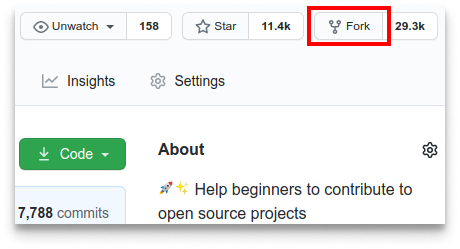
Fork repository นี้โดยคลิกที่ปุ่ม fork ที่ด้านบนของหน้านี้ การทำเช่นนี้จะสร้างสำเนาของ repository นี้ในบัญชีของคุณ
Clone repository
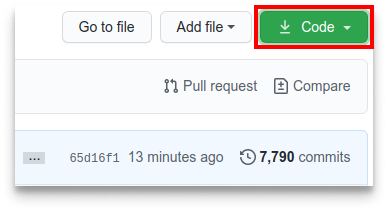
ตอนนี้ clone repository ที่คุณ fork มายังเครื่องของคุณ ไปที่บัญชี GitHub ของคุณ เปิด repository ที่คุณ fork คลิกที่ปุ่ม code จากนั้นไปที่แท็บ SSH แล้วคลิกไอคอน copy url to clipboard
เปิด terminal และรันคำสั่ง git ต่อไปนี้:
git clone "url you just copied"โดยที่ "url you just copied" (ไม่ต้องมีเครื่องหมายคำพูด) คือ URL ของ repository นี้ (fork ของโปรเจกต์นี้ของคุณ) ดูขั้นตอนก่อนหน้าเพื่อรับ URL
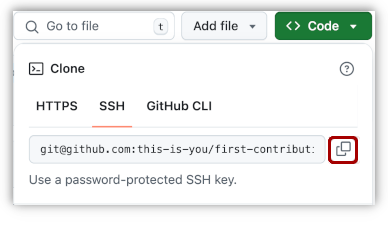
ตัวอย่างเช่น:
git clone git@github.com:this-is-you/first-contributions.gitโดยที่ this-is-you คือชื่อผู้ใช้ GitHub ของคุณ ที่นี่คุณกำลังคัดลอกเนื้อหาของ repository first-contributions บน GitHub ไปยังคอมพิวเตอร์ของคุณ
สร้าง branch
เปลี่ยนไปที่ไดเรกทอรีของ repository บนคอมพิวเตอร์ของคุณ (หากคุณยังไม่ได้อยู่ที่นั่น):
cd first-contributionsตอนนี้สร้าง branch โดยใช้คำสั่ง git switch:
git switch -c your-new-branch-nameตัวอย่างเช่น:
git switch -c add-alonzo-churchหากข้อความแสดงข้อผิดพลาด "Git: switch is not a git command. See git –help" ปรากฏขึ้น เป็นไปได้ว่าคุณกำลังใช้ git เวอร์ชันเก่ากว่า
ในกรณีนี้ ให้ลองใช้ git checkout แทน:
git checkout -b your-new-branch-nameทำการเปลี่ยนแปลงที่จำเป็นและ commit การเปลี่ยนแปลงเหล่านั้น
ตอนนี้เปิดไฟล์ Contributors.md ในโปรแกรมแก้ไขข้อความ เพิ่มชื่อของคุณลงไป อย่าเพิ่มไว้ที่ต้นหรือท้ายไฟล์ ให้วางไว้ตรงกลางที่ใดก็ได้ ตอนนี้บันทึกไฟล์
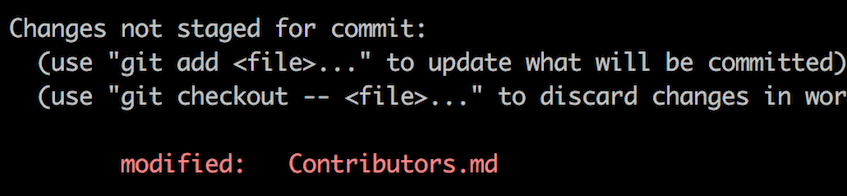
หากคุณไปที่ไดเรกทอรีโปรเจกต์และรันคำสั่ง git status คุณจะเห็นว่ามีการเปลี่ยนแปลง
เพิ่มการเปลี่ยนแปลงเหล่านั้นไปยัง branch ที่คุณเพิ่งสร้างโดยใช้คำสั่ง git add:
git add Contributors.mdตอนนี้ commit การเปลี่ยนแปลงเหล่านั้นโดยใช้คำสั่ง git commit:
git commit -m "Add your-name to Contributors list"แทนที่ your-name ด้วยชื่อของคุณ
Push การเปลี่ยนแปลงไปยัง GitHub
Push การเปลี่ยนแปลงของคุณโดยใช้คำสั่ง git push:
git push -u origin your-branch-nameแทนที่ your-branch-name ด้วยชื่อของ branch ที่คุณสร้างไว้ก่อนหน้านี้
- ข้อผิดพลาดในการยืนยันตัวตนไปที่ [บทเรียนของ GitHub](https://docs.github.com/en/authentication/connecting-to-github-with-ssh/adding-a-new-ssh-key-to-your-github-account) เกี่ยวกับการสร้างและกำหนดค่า SSH key ให้กับบัญชีของคุณ นอกจากนี้ คุณอาจต้องการรัน 'git remote -v' เพื่อตรวจสอบที่อยู่ remote ของคุณ หากมีลักษณะดังนี้: เปลี่ยนโดยใช้คำสั่งนี้:git remote set-url origin git@github.com:your-username/your_repo.gitมิฉะนั้น คุณจะยังคงถูกขอชื่อผู้ใช้และรหัสผ่าน และได้รับข้อผิดพลาดในการยืนยันตัวตน
ส่งการเปลี่ยนแปลงของคุณเพื่อตรวจสอบ
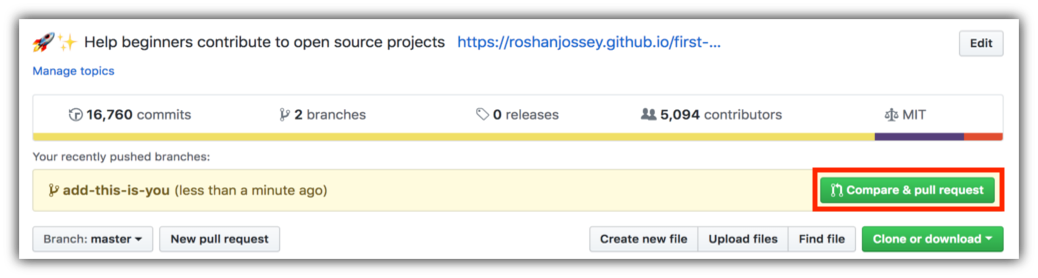
หากคุณไปที่ repository ของคุณบน GitHub คุณจะเห็นปุ่ม Compare & pull request คลิกที่ปุ่มนั้น
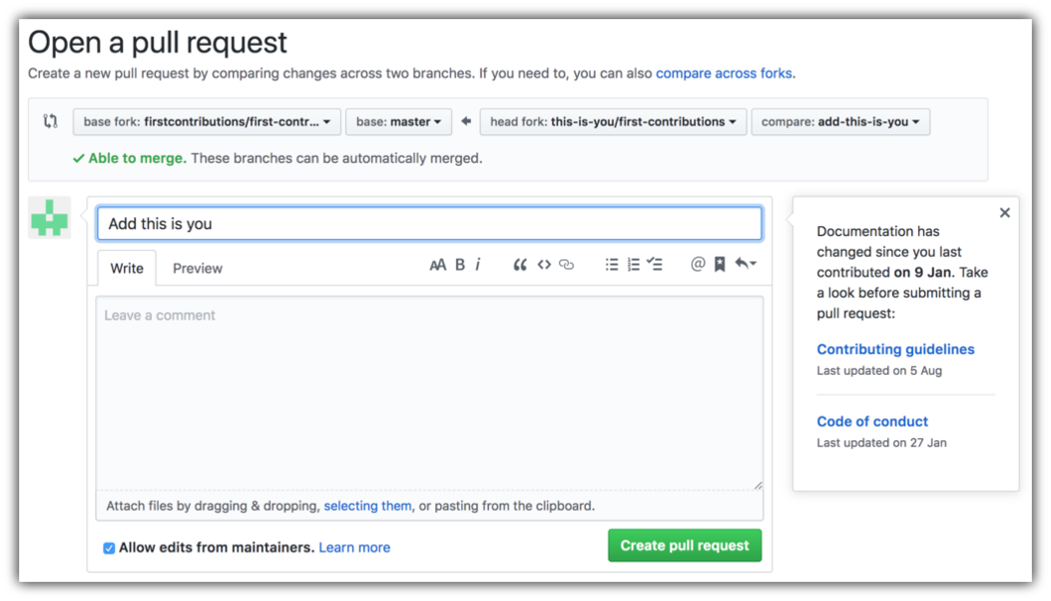
ตอนนี้ส่ง pull request
ในไม่ช้าฉันจะรวมการเปลี่ยนแปลงทั้งหมดของคุณเข้าสู่ main branch ของโปรเจกต์นี้ คุณจะได้รับอีเมลแจ้งเตือนเมื่อการเปลี่ยนแปลงได้รับการรวมเข้าด้วยกันแล้ว
จะไปต่อที่ไหนดี?
ยินดีด้วย! คุณเพิ่งทำตามขั้นตอนมาตรฐาน fork -> clone -> edit -> pull request ซึ่งคุณจะพบบ่อยในฐานะผู้มีส่วนร่วม!
ฉลองการมีส่วนร่วมของคุณและแบ่งปันกับเพื่อนและผู้ติดตามของคุณโดยไปที่ web app
หากคุณต้องการฝึกฝนเพิ่มเติม ลองดู code contributions
ตอนนี้เรามาเริ่มให้คุณมีส่วนร่วมในโปรเจกต์อื่น ๆ กัน เราได้รวบรวมรายชื่อโปรเจกต์ที่มีปัญหาที่ง่ายที่คุณสามารถเริ่มต้นได้ ตรวจสอบ รายชื่อโปรเจกต์ใน web app
เนื้อหาเพิ่มเติม
บทเรียนการใช้เครื่องมืออื่น ๆ



เอกสารโปรเจกต์
อ่านเอกสารต้นฉบับ
README วิธีติดตั้ง วิธีใช้งาน และข้อกำหนดจาก repository ต้นฉบับ
Read this in other languages.




















First Contributions
This project aims to simplify and guide the way beginners make their first contribution. If you are looking to make your first contribution, follow the steps below.
If you're not comfortable with command line, here are tutorials using GUI tools.
If you don't have git on your machine, install it.
Fork this repository
Fork this repository by clicking on the fork button on the top of this page. This will create a copy of this repository in your account.
Clone the repository
Now clone the forked repository to your machine. Go to your GitHub account, open the forked repository, click on the code button, then on SSH tab and then click the copy url to clipboard icon.
Open a terminal and run the following git command:
git clone "url you just copied"where "url you just copied" (without the quotation marks) is the url to this repository (your fork of this project). See the previous steps to obtain the url.
For example:
git clone git@github.com:this-is-you/first-contributions.gitwhere this-is-you is your GitHub username. Here you're copying the contents of the first-contributions repository on GitHub to your computer.
Create a branch
Change to the repository directory on your computer (if you are not already there):
cd first-contributionsNow create a branch using the git switch command:
git switch -c your-new-branch-nameFor example:
git switch -c add-alonzo-churchIf the error message "Git: switch is not a git command. See git –help" appears, it's likely because you're using an older version of git.
In this case, try to use git checkout instead:
git checkout -b your-new-branch-nameMake necessary changes and commit those changes
Now open Contributors.md file in a text editor, add your name to it. Don't add it at the beginning or end of the file. Put it anywhere in between. Now, save the file.
If you go to the project directory and execute the command git status, you'll see there are changes.
Add those changes to the branch you just created using the git add command:
git add Contributors.mdNow commit those changes using the git commit command:
git commit -m "Add your-name to Contributors list"replacing your-name with your name.
Push changes to GitHub
Push your changes using the command git push:
git push -u origin your-branch-namereplacing your-branch-name with the name of the branch you created earlier.
- Authentication ErrorGo to [GitHub's tutorial](https://docs.github.com/en/authentication/connecting-to-github-with-ssh/adding-a-new-ssh-key-to-your-github-account) on generating and configuring an SSH key to your account. Also, you might want to run 'git remote -v' to check your remote address. If it looks anything like this: change it using this command:git remote set-url origin git@github.com:your-username/your_repo.gitOtherwise you'll still get prompted for username and password and get authentication error.
Submit your changes for review
If you go to your repository on GitHub, you'll see a Compare & pull request button. Click on that button.
Now submit the pull request.
Soon I'll be merging all your changes into the main branch of this project. You will get a notification email once the changes have been merged.
Where to go from here?
Congrats! You just completed the standard fork -> clone -> edit -> pull request workflow that you'll often encounter as a contributor!
Celebrate your contribution and share it with your friends and followers by going to web app.
If you'd like more practice, checkout code contributions.
Now let's get you started with contributing to other projects. We've compiled a list of projects with easy issues you can get started on. Check out the list of projects in the web app.